How to enrich company data with Elvesora (step by step)
A practical, step-by-step guide to enriching company data with Elvesora - from single lookups to bulk enrichment using Lists.


Intro
Company data rarely comes complete.
Names without context, domains without structure, records missing critical details.
In this guide, we’ll walk through how to enrich company data with Elvesora step by step - from input to enriched results.
No theory. Just a practical workflow.
When to use this guide
Use this process if you:
- have a list of company domains or business emails
- need firmographic context before segmentation or outreach
- want to improve data quality without manual research
What you need before starting
- an active Elvesora account
- a list of company domains (or business emails)
- basic understanding of what fields you want to enrich
Step 1: Sign in and select Company Enrichment
Start by signing in to your Elvesora account:
https://auth.elvesora.com/signin
You can sign in using your email and password, or continue with Google and Microsoft Office.
If you’re new to Elvesora, you’ll be asked to create an account and confirm your email before continuing.
Once signed in, you’ll land on the Select Your Product screen.
From there, choose Data Enrichment to access the enrichment workflow.
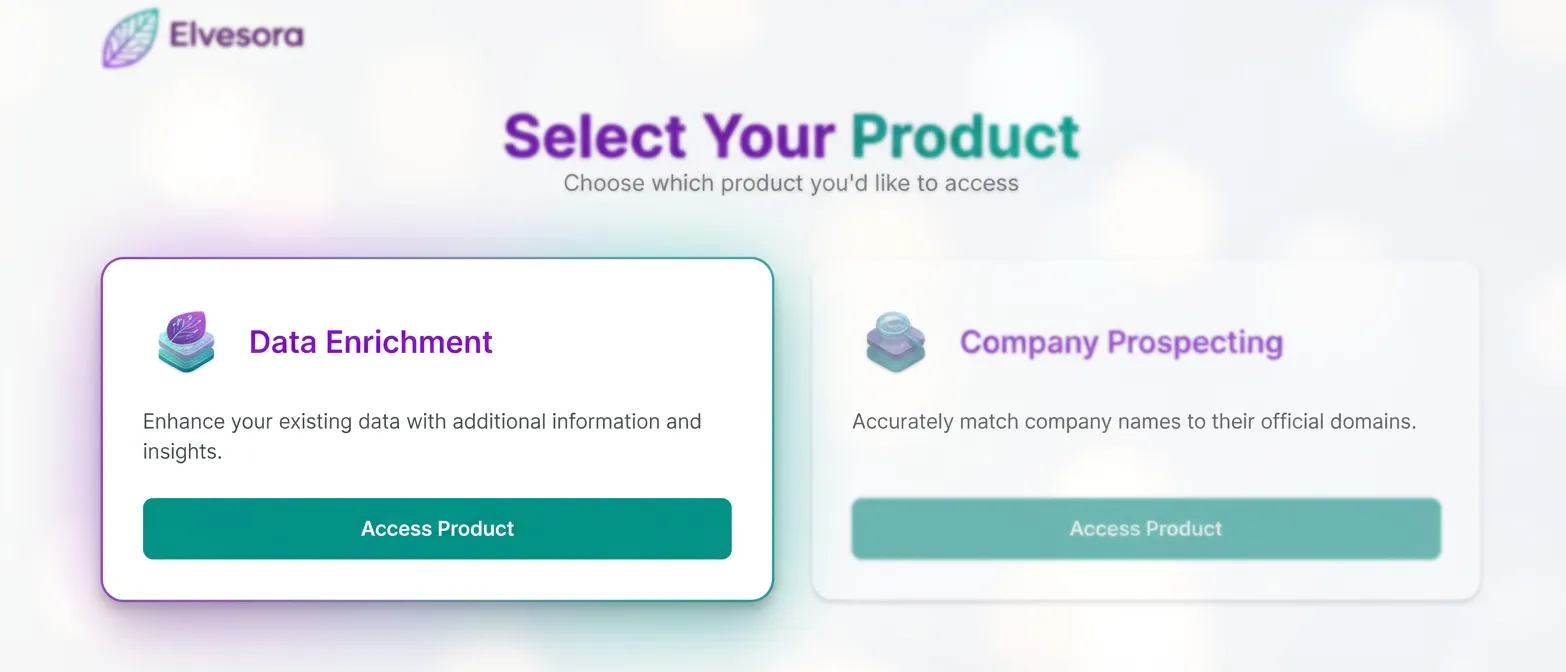
Illustration 1: Product selection screen after signing in, with Data Enrichment highlighted.
Step 2: Access the enrichment workspace
After selecting Data Enrichment, you’ll be taken to the enrichment workspace.
If you’re new to Elvesora, a free plan will be activated automatically, giving you access to enrichment features. This step unlocks the enrichment interface and allows you to start working with company data right away.
Once activated, you can either test enrichment with a single domain or move to the Lists section to run enrichment in bulk.
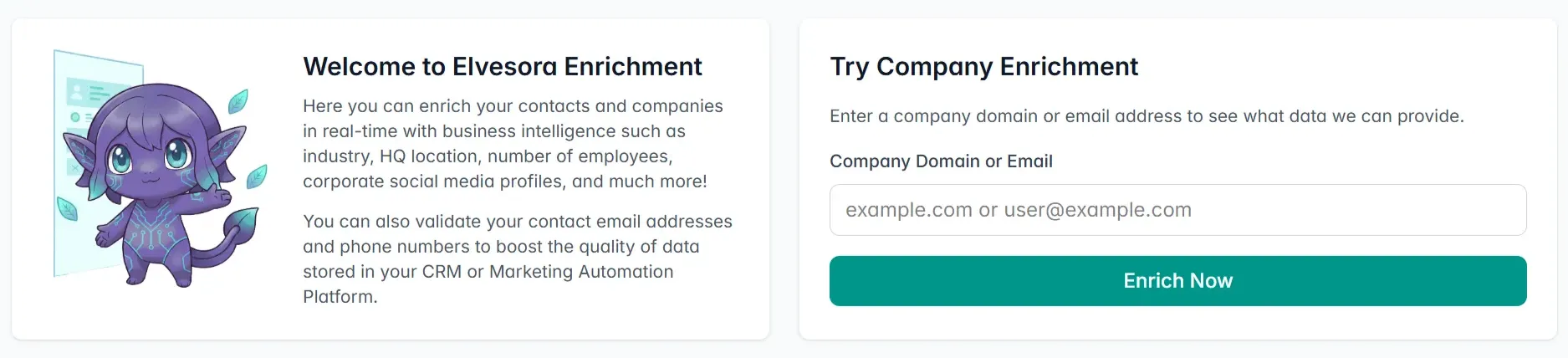
Illustration 2: Data Enrichment workspace showing single domain/business email enrichment as a starting point.
Step 3: Test enrichment with a single domain or email
Before working with larger datasets, it’s helpful to see how enrichment works on a single example.
In the Try Company Enrichment panel, enter:
- a company domain (for example,
apple.com), or - a business email address (for example,
user@apple.com)
Then click Enrich Now to run enrichment for that single record.
This quick check helps you:
- understand what data Elvesora returns
- see which fields are available
- verify data quality before moving to bulk enrichment
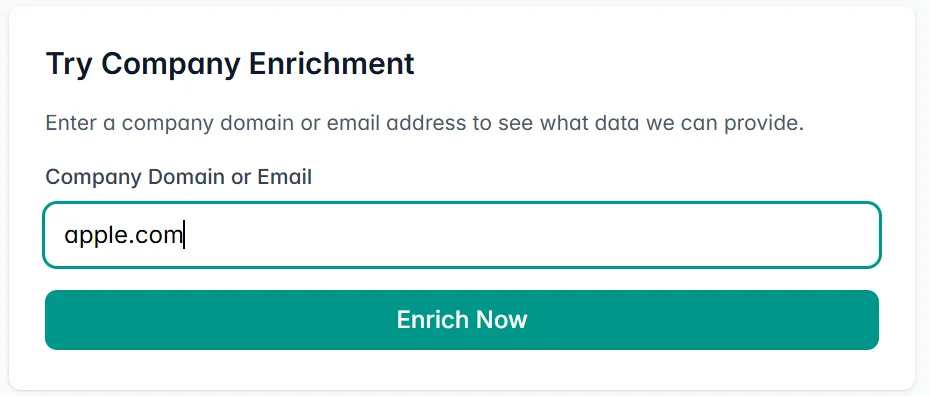
Illustration 3: Single domain or email enrichment using the Try Company Enrichment panel.
Step 4: Review enriched company data
After running enrichment, you’ll see the Enrichment Results view with a complete company profile.
This is where raw input turns into structured company context.
In the results, you can review key attributes such as:
- company name
- website URL
- industry classification
- employee count and revenue range
- headquarters and business addresses
- social media links
- technology and category tags
Each section adds context to help you better understand the company behind the domain or email you enriched.
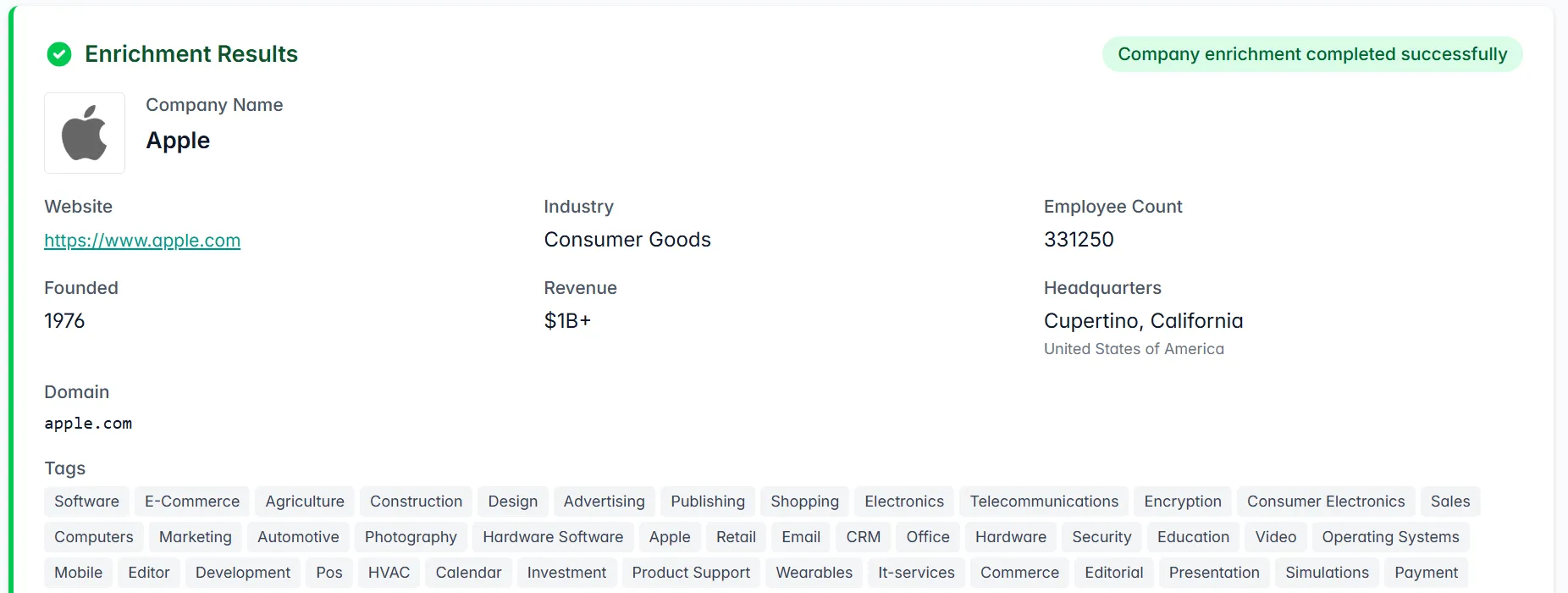
Illustration 4: Enrichment results showing a complete company profile.
How to read these results
Not every field is meant to be used on its own.
- Core identifiers (company name, domain, website) support record matching and normalization.
- Firmographic data (industry, size, location, addresses) helps with segmentation and reporting.
- Social links and technologies provide additional business context.
- Tags make it easier to group, filter, or enrich data downstream.
The goal is to make existing records clearer, more complete, and easier to work with.
Why this step matters
Reviewing a single enriched record helps you:
- validate enrichment accuracy
- understand which data points are available
- decide how enrichment fits into your workflow before scaling up
Once this makes sense, you’re ready to move on.
Step 5: Enrich company data in bulk using Lists
Once you’re familiar with single-record enrichment, you can move on to bulk enrichment using Lists.
From the top navigation, open the Lists section.
This is where you can enrich multiple company records at once.

Illustration 5: Lists section in the main navigation.
Step 6: Open Lists and create your first enrichment list
After switching to Lists, you’ll see the Lists workspace.
If this is your first time here, the page will be empty and prompt you to create a new list.
Click Create Your First List to get started.
This is where bulk enrichment begins.

Illustration 6: Lists workspace with the option to create a new enrichment list.
What Lists are used for
Lists allow you to:
- work with multiple company records at once
- upload or paste data in bulk
- run enrichment at scale instead of one record at a time
Once a list is created, you can add your data and start enrichment for the entire set.
Why this step matters
Single-record enrichment helps you understand the data.
Lists turn that understanding into a repeatable workflow.
At this point, enrichment moves from testing to real use.
Step 7: Add company data to your list
After creating a new list, you’ll be asked how you want to add records.
For this guide, we’ll use Copy & Paste.
This option follows the same logic as uploading a CSV or Excel file and is the fastest way to get started.
Enter a name for your list, then paste your data into the input field.
Each entry should be on its own line.
You can add:
- company domains (for example,
tesla.com) - or business email addresses (for example,
user@tesla.com)
Once your list name and entries are ready, click Create and Start Processing.
Your list will be created and enrichment will begin automatically.
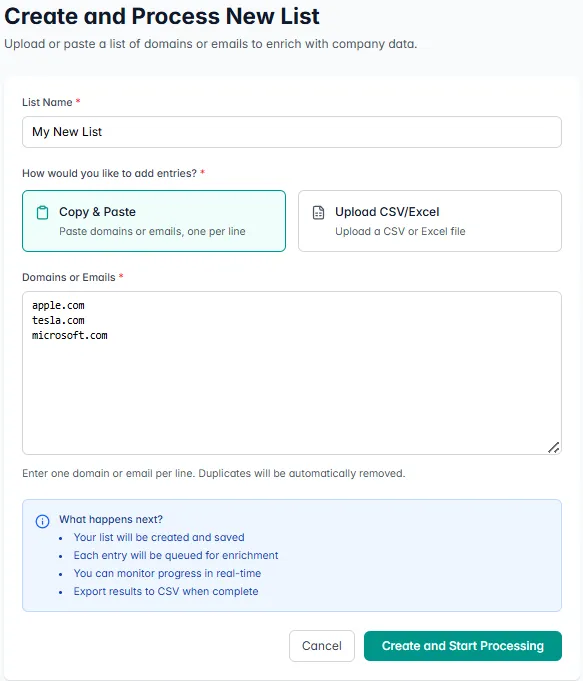
Illustration 7: Creating and starting processing for a new enrichment list.
A note on CSV and Excel uploads
Uploading a CSV or Excel file follows the same process under the hood.
The only difference is how records are added.
If your data already lives in a spreadsheet, file upload may be more convenient.
If you’re testing or working with a small set of records, Copy & Paste is often faster.
Step 8: Monitor bulk enrichment progress
After starting processing, your list will appear in the Lists view with a Processing status.
This means enrichment is running in the background.
You can see:
- the current status of the list
- how many records have been processed
- real-time progress as enrichment continues
No action is required at this stage.
You can stay on this screen or move to another section - processing will continue automatically.

Illustration 8: List processing status with real-time progress.
What to expect
Processing time depends on the size of your list.
Smaller lists usually complete quickly, while larger datasets may take longer.
Once processing is finished, the list status will update automatically.
Step 9: Review results and export your list
Once processing is complete, the list status will change to Completed.
Open your list to review the enriched records.
Inside, you’ll see a table with a summary view of enriched company data, including:
- company name
- industry
- location
- employee size
- revenue range
- enrichment status for each record
This view is designed to help you quickly scan and validate results.
To access the full set of enriched attributes for each company, export the list.
When you’re ready to use the results outside of Elvesora, click Export to Excel to download the complete enriched dataset.
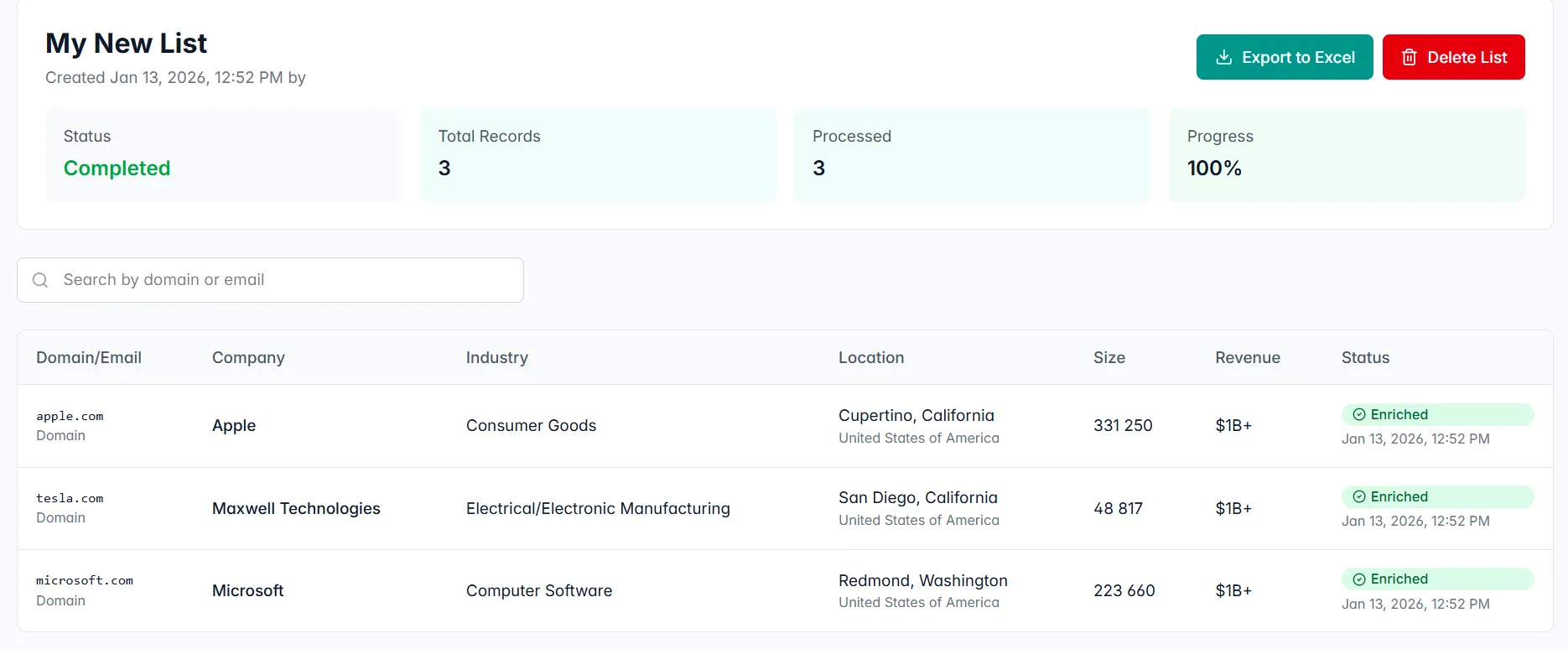
Illustration 9: Summary view with enriched records and Export to Excel option.
(Optional) One-line note about exports
Export is the fastest option for one-time projects. For ongoing workflows, API-based enrichment is usually a better fit.
Final thoughts
Company enrichment works best when it’s part of a regular workflow, not a one-time task.
By starting with a single record and scaling through Lists, you can turn incomplete inputs into structured, usable company data with minimal effort.
As your datasets grow, enrichment becomes less about fixing gaps and more about maintaining clarity over time.