How to Find a Company’s Domain by Name with Elvesora
A practical guide to matching a company name to a likely official website domain, then deciding found, no-match, or review before CRM or enrichment runs.

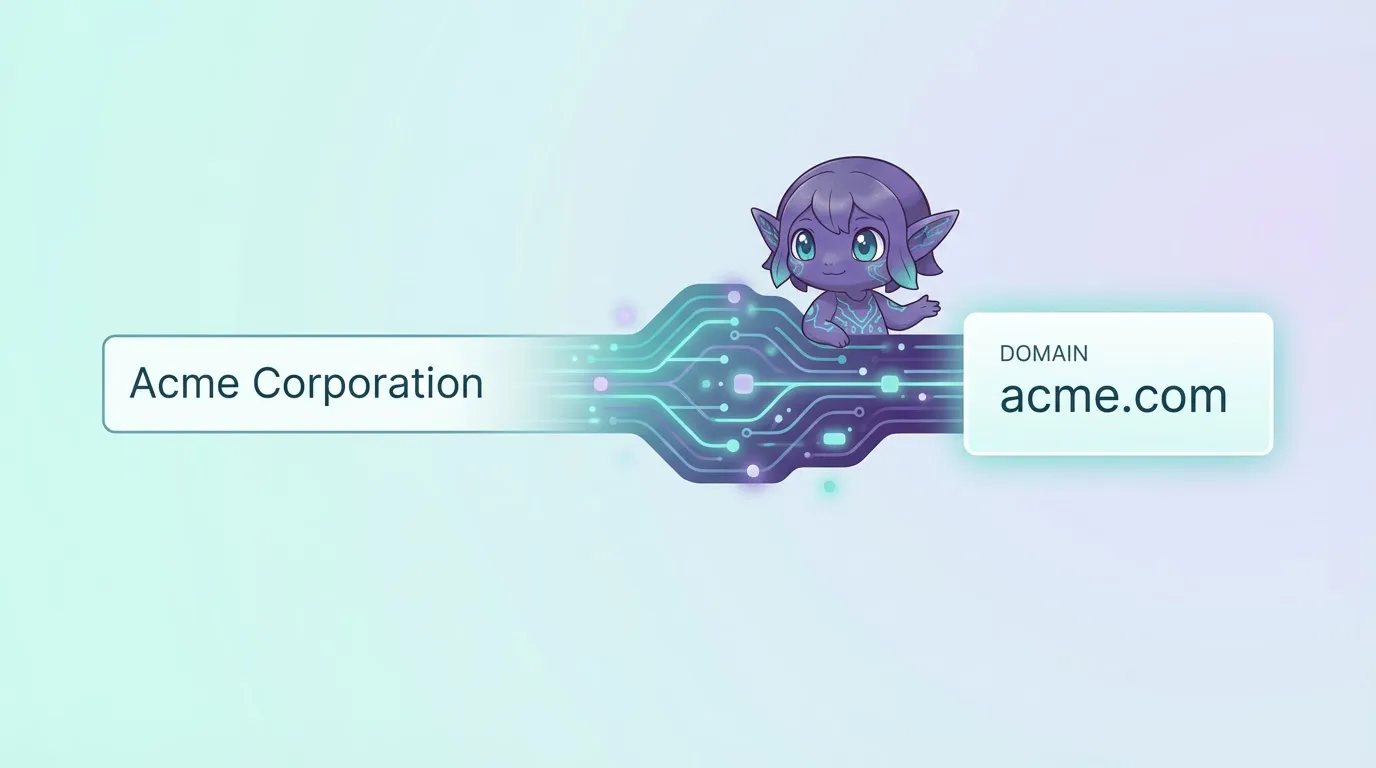
Finding a company’s official website sounds simple.
Type the name into Google.
Click the first result.
Move on.
That approach works until it doesn’t.
At scale, company names are rarely clean or unique. Abbreviations, legal suffixes, regional entities, and outdated brands quickly turn a simple search into guesswork. One wrong domain is enough to break enrichment, CRM hygiene, and company identity workflows downstream.
In this guide, we’ll walk through a practical process for matching a company name to a likely official website domain, using Elvesora as an example.
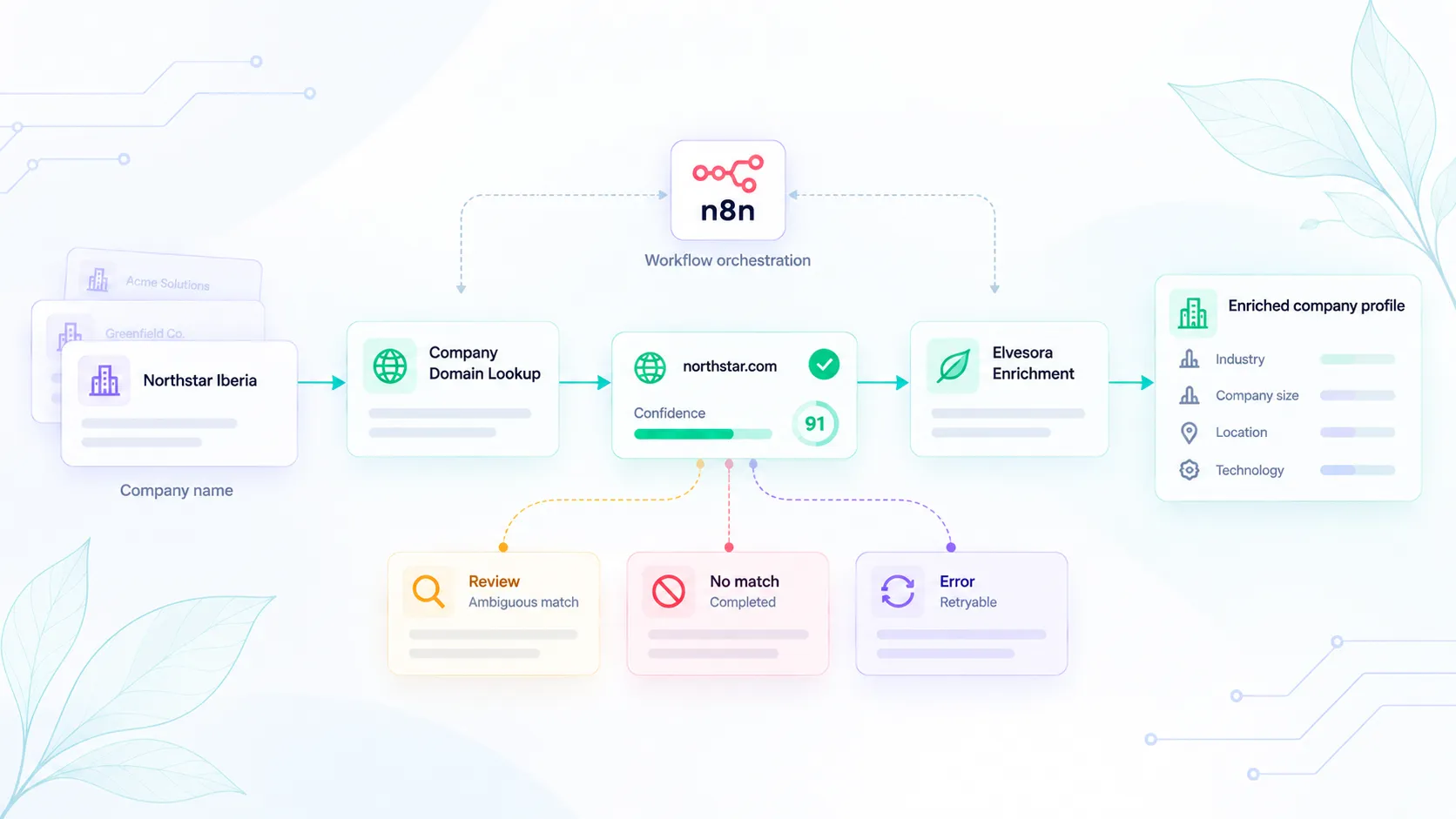
Accurate domain identification is a core part of a company identity workflow. It helps teams review the likely official website before enrichment or CRM routing begins.
Try the live Company Domain Lookup demo with one company name.
Why company domain lookup tools matter more than you think
Company names are messy by nature.
The same business can appear as:
- a brand name
- a legal entity
- an abbreviated form
- a regional subsidiary
At the same time, different companies often share similar or identical names. Without a clear matching and review process, this leads to:
- false domain matches
- duplicate company records
- misattributed enrichment
- CRM updates applied to the wrong organization
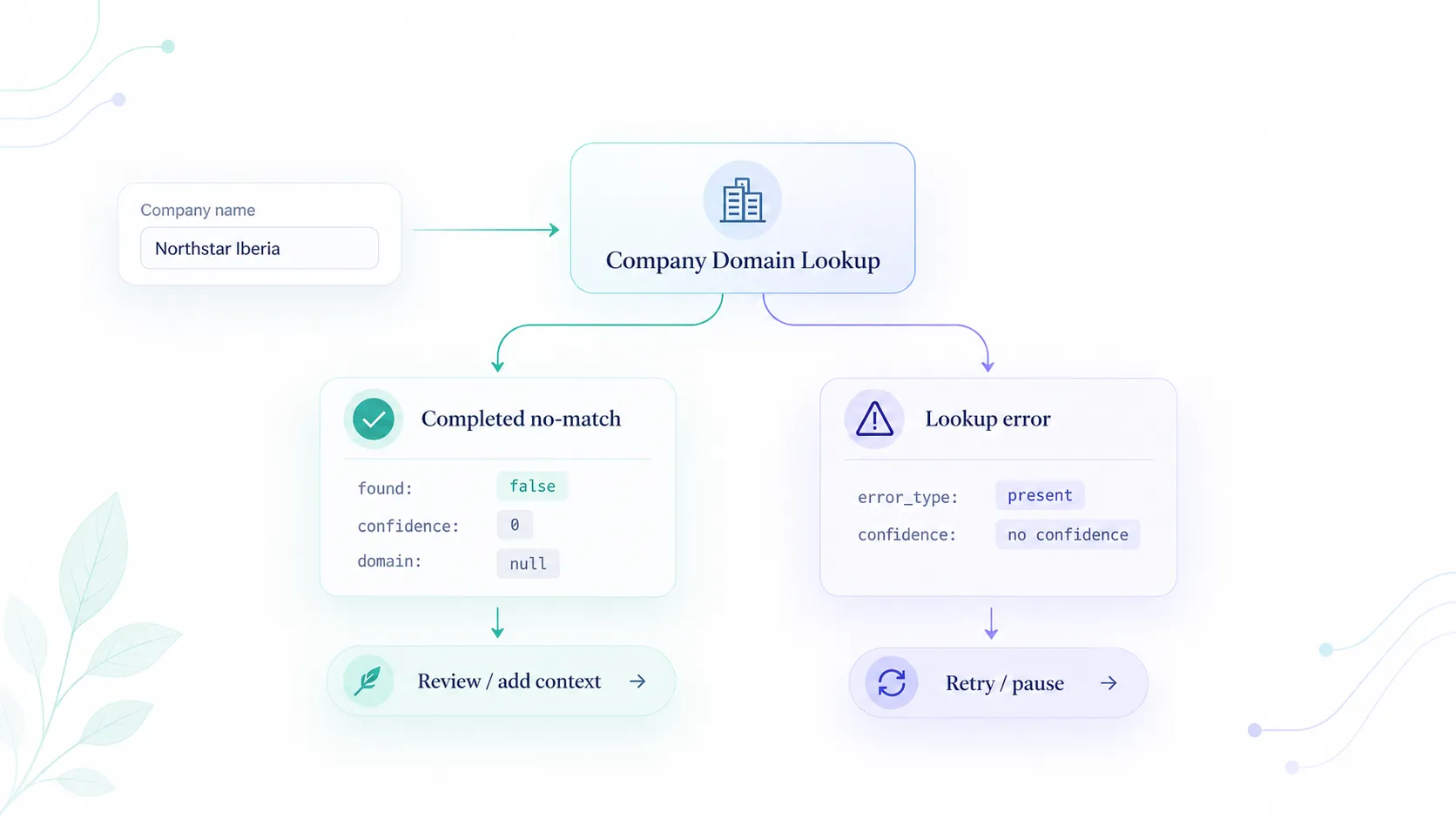
This is why company domain lookup matters. It returns a likely official website candidate that teams can accept, review, or leave as no-match.
If you want a broader overview of company data workflows, read our guide to finding the right accounts.
What you need before you start
To find a company’s domain by name reliably, you only need one thing: a company name.
It doesn’t have to be perfect. It can include suffixes like Inc or Corp. It can be slightly outdated or informal.
The goal is not to clean the name manually, but to let the system normalize the input and use optional context for matching.
Step 1: Sign in and open Company Domain Lookup
Start by signing in to your Elvesora account:
https://www.elvesora.com/signin
You can sign in using your email and password, or continue with Google or Microsoft Office.
If you’re new to Elvesora, create an account and confirm your email address before proceeding.
After signing in, you will land on the Select Your Product screen.
From there, choose Company Domain Lookup to access the company name-to-domain matching workflow.
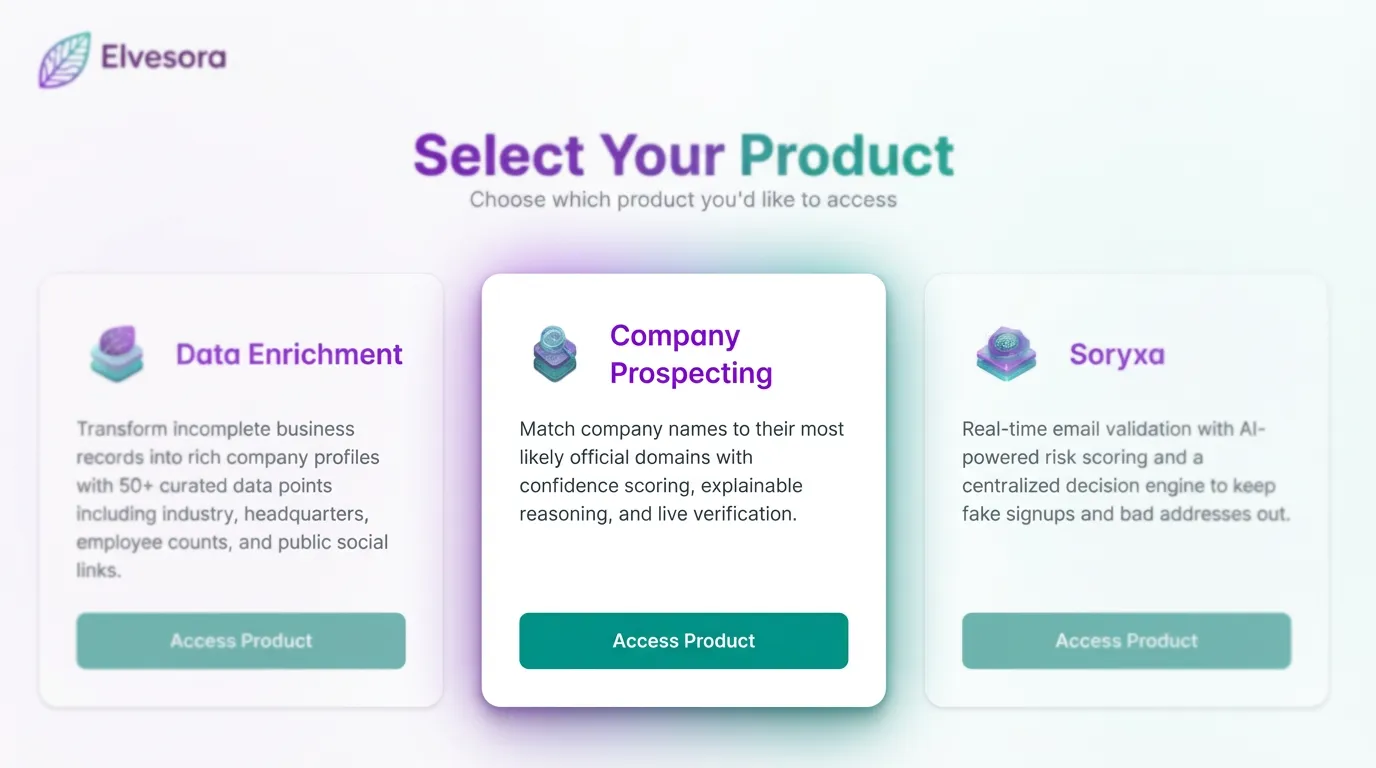
Illustration 1: Product selection screen after signing in, with Company Domain Lookup highlighted.
Step 2: Enter a company name
After selecting Company Domain Lookup, you will see the main domain lookup workspace.
On the right side, under Try Company Domain Lookup, there is a field labeled Company Name.
Enter the name of the company you want to find the official domain for. This is the starting point for finding a company’s domain by name.
For example:
"elvesora corp"
Then click Find Domain.
This starts the company name to domain lookup process. The system takes your input and begins evaluating the most likely official domain associated with that company.
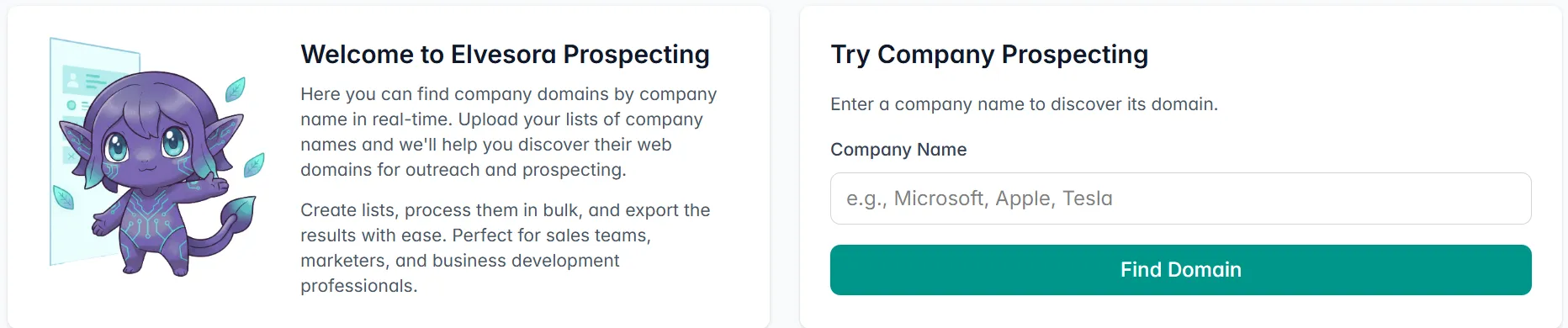
Illustration 2: Company Domain Lookup workspace showing a single company name as the starting point.
Step 3: Normalize the company name
Before looking for a domain, the company name needs to be normalized.
Normalization removes unnecessary variation and helps the system understand what the company is likely to be called across public sources.
This step typically includes:
- removing legal suffixes
- resolving common abbreviations
- aligning brand and legal naming
Normalization reduces ambiguity and prepares the input for accurate domain lookup.
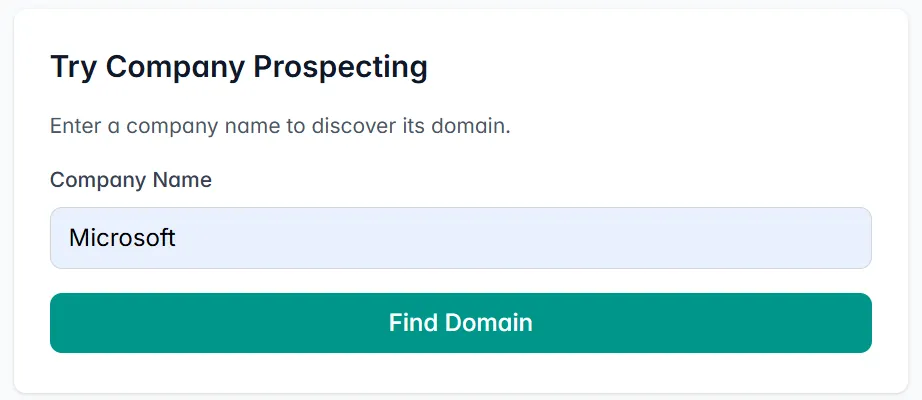
Illustration 3: Single company name using the Try Company Domain Lookup panel.
Step 4: Review the domain lookup result
After clicking Find Domain, the result appears below the input field.
You’ll see:
- Company Name
- Likely Official Domain
- Confidence score (ordinal 1–100 for a found match, 0 for no-match)
- A list of confidence indicators explaining why this domain was selected
For example, the system may confirm:
- the company is widely recognized
- the domain is a likely official website match
- the domain is the likely official website for that company name
The confidence score is an ordinal routing signal for automation or review.
A higher ordinal score supports stronger automation or review routing under your policy; it is not a calibrated probability. In a company identity workflow, review the reasons before writing the returned domain to CRM.
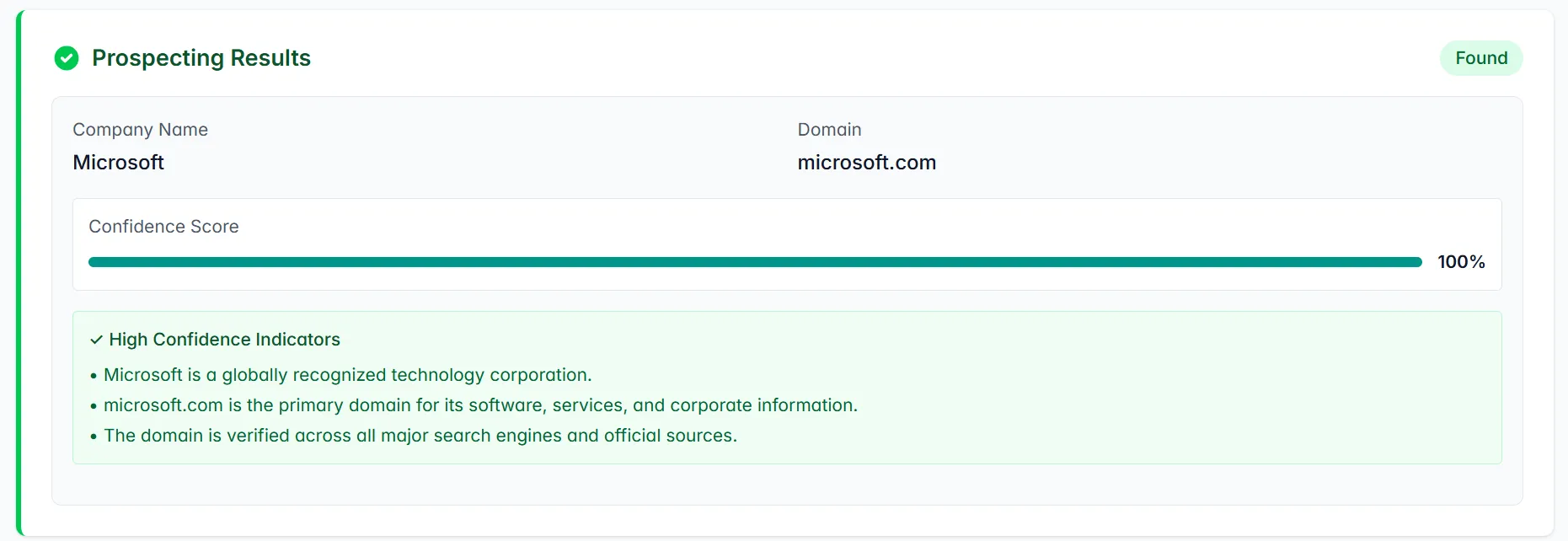
Illustration 4: Found domain result with an ordinal confidence score and explainable indicators.
How to read these results
The confidence score is an ordinal routing score for the found match.
A high score places the found match in the product’s high routing band; it remains an ordinal score, not a probability.
These signals may include official-website matching, name similarity, and supplied company context.
The confidence indicators explain why the domain was selected.
They provide transparency, so you can understand the reasoning behind the result instead of relying on a black box.
If the score is lower than expected, review the indicators carefully before using the domain in enrichment or CRM routing workflows.
Why this step matters
Domain accuracy affects everything that comes after it.
If the wrong domain is selected:
- enrichment may attach incorrect company data
- CRM records may duplicate or mismatch
- CRM automation may update the wrong organization
By reviewing the likely official domain first, you protect every downstream workflow.
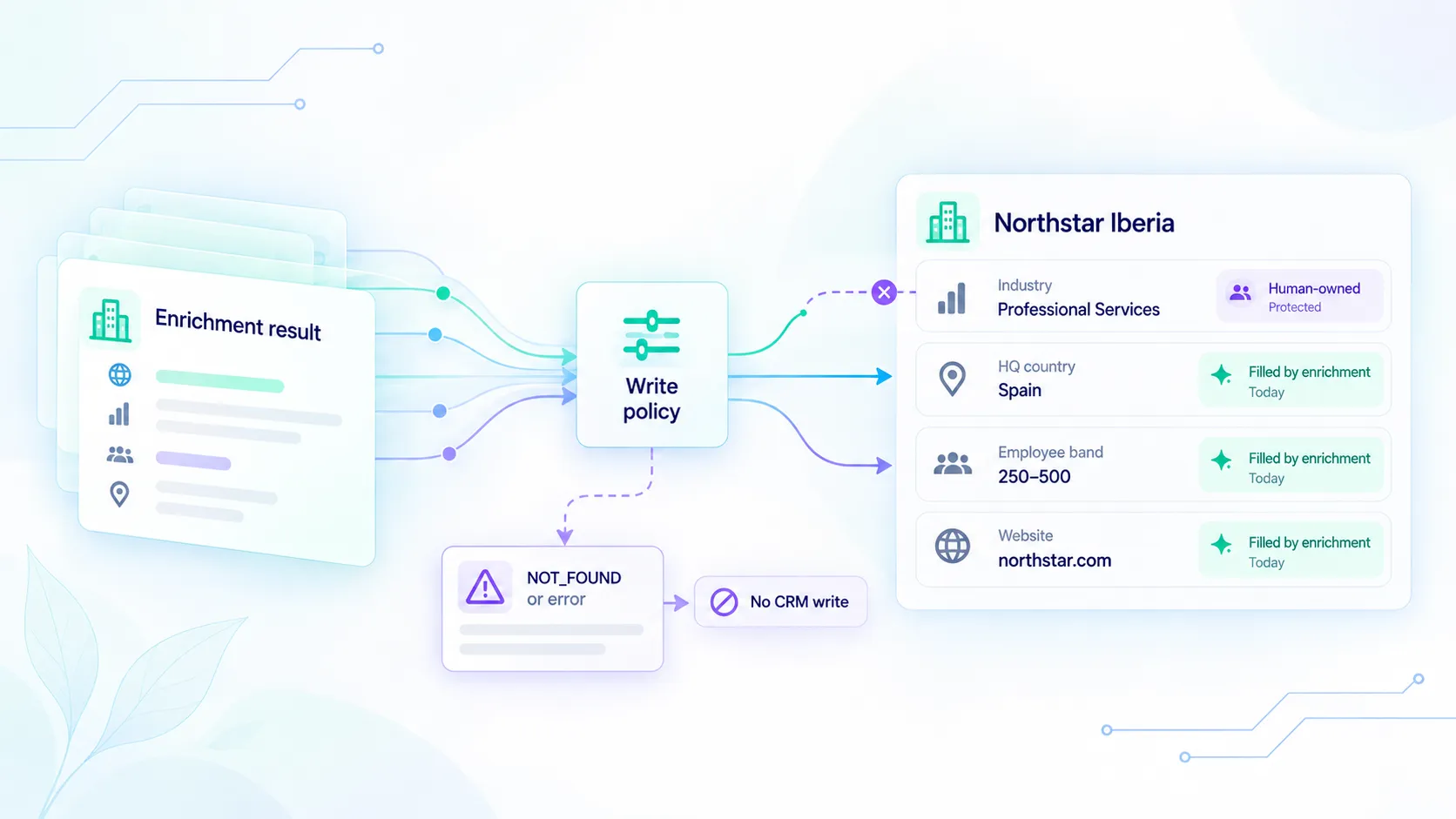
This is especially important before running company enrichment, where domain accuracy determines what profile gets attached.
Company domain lookup isn’t just a search step.
It’s the point where accuracy either begins or breaks.
Step 5: Find company domains in bulk using Lists
If you need to look up domains for multiple companies at once, switch to the Lists tab in the top navigation.
Bulk domain lookup allows you to:
- upload a list of company names
- process them automatically
- review results in one place
- export reviewed domains for further use
Click Lists to get started with bulk processing.

Illustration 5: Company Domain Lookup navigation with the Lists tab highlighted.
Why this step matters
Bulk processing makes company name to domain lookup scalable.
Instead of checking companies one by one, you can:
- process dozens or hundreds of company names at once
- automatically match each name to its most likely official domain
- review results in one structured workspace
Bulk domain lookup reduces manual matching work. Especially when cleaning CRM accounts before enrichment or routing.
Step 6: Create your first domain lookup list
If you don’t have any lists yet, you’ll see a screen that says No lists found.
To start bulk company domain lookup, click Create Your First List.
This will open the list creation workflow, where you can upload or paste multiple company names and process them in one go.
Bulk lists are ideal when you:
- have a spreadsheet of target companies
- want to validate multiple names at once
- need likely official domains for CRM updates or enrichment
Illustration 6: Empty Lists screen with the “Create Your First List” button.
Step 7: Create and process your domain lookup list
Once you click Create Your First List, you’ll see the list creation screen.
Here’s where you prepare your bulk company lookup.
1. Name your list
Give your list a clear name (for example: Q1 SaaS Accounts or CRM Domain Backfill).
This helps you stay organized as you run multiple domain lookup batches.
2. Choose how to add company names
You have two options:
- Copy & Paste – paste company names directly (one per line)
- Upload CSV/Excel – upload a file with company names
For this example, we’ll use Copy & Paste.
3. Enter company names
Add one company name per line:
Microsoft
Apple Inc
Tesla Motors
Duplicates are automatically removed.
When you’re ready, click Create and Start Processing.
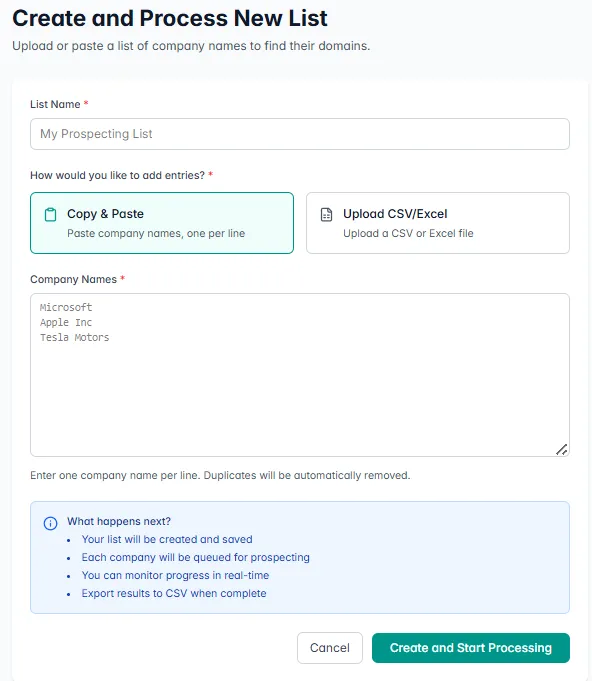
Illustration 7: Creating and starting processing for a new domain lookup list.
A note on CSV and Excel uploads
If you're working with larger datasets, uploading a CSV or Excel file may be more convenient.
When preparing your file:
- Make sure company names are in a single column
- Avoid mixing domains and company names in the same column
- Remove empty rows to prevent unnecessary processing
Elvesora will automatically:
- detect duplicates
- queue each company for lookup
- process entries in bulk
The workflow and results are the same whether you use Copy & Paste or upload a file — the only difference is how you provide the input.
Step 8: Review list status and open results
Once processing is complete, your list status will change to Completed.
In the Lists overview, you’ll see:
- the list name
- current status
- total records processed
- creation date
- action icons
When the status shows Completed, your domains are ready. Click the eye icon under Actions, or simply click the list name (in our example, My Domain Lookup List) to open it and review the results in detail.

Illustration 8: Lists overview screen showing a completed domain lookup list.
Step 9: Review and export your domain lookup results
Once you open the list, you’ll see a full overview of your domain lookup results.
At the top of the page, you’ll find a summary dashboard with:
- Status (Completed)
- Total records
- Processed count
- Progress percentage
- Found, no-match, and failed breakdown
This gives you a quick understanding of how your list performed.
Below the summary, you’ll see a detailed results table with:
- Company name
- Likely official domain
- Confidence score
- Clear reasoning behind the match
- Processing status
- Timestamp
Each completed row represents a found match or no-match outcome, with explainable indicators for review.
You can use the search bar to quickly locate a specific company or domain within the list.
When you're ready to use the data outside Elvesora, click Export in the top right corner to download the results.
This file can then be used for:
- CRM updates
- Account segmentation
- CRM update preparation
- Internal data cleanup
Your company-domain lookup is now structured, reviewed, and ready to support the next step in your workflow.
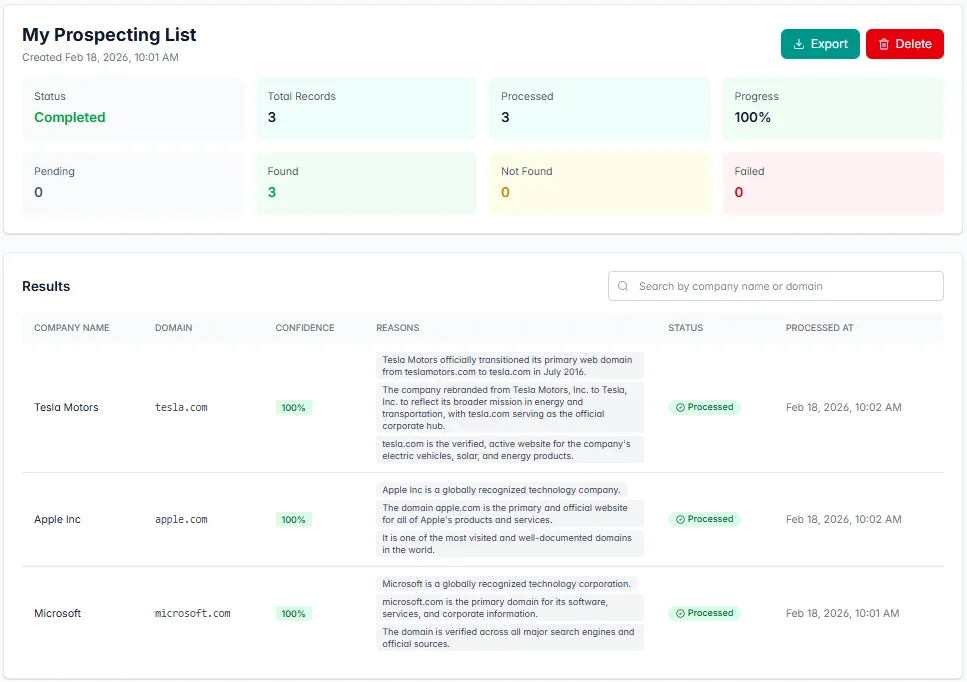
Illustration 9: Summary view with domain lookup records and Export to Excel option.
Final thoughts
Finding a company’s domain by name sounds simple.
In practice, it’s one of the most important steps in B2B workflows.
If the domain is wrong, everything downstream becomes unstable:
- enrichment pulls the wrong profile
- segmentation misfires
- CRM updates lose reliability
When domain matches are reviewed and accepted:
- data stays consistent
- enrichment works properly
- domain matching becomes predictable
Company Domain Lookup isn’t about collecting more names.
It starts with identifying the correct company entity and its official domain.
If you're building clean data foundations, you might also want to explore:
- How company enrichment adds structured context
- How email validation protects what enters your system
Because clarity works best when every layer of data supports the next one.
Explore Company Domain Lookup inside Elvesora and see how reviewed company-to-website matching fits your workflow.