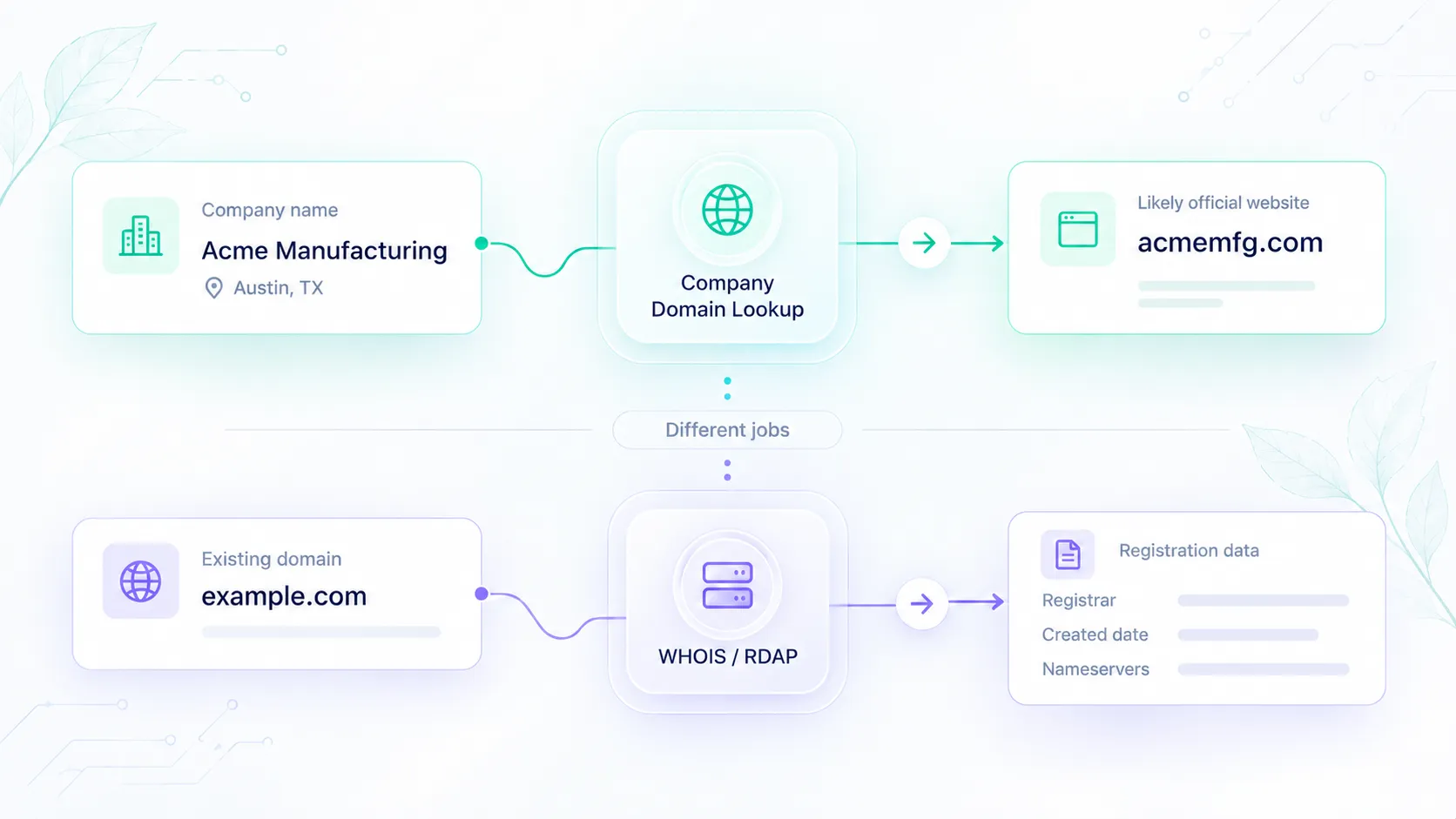
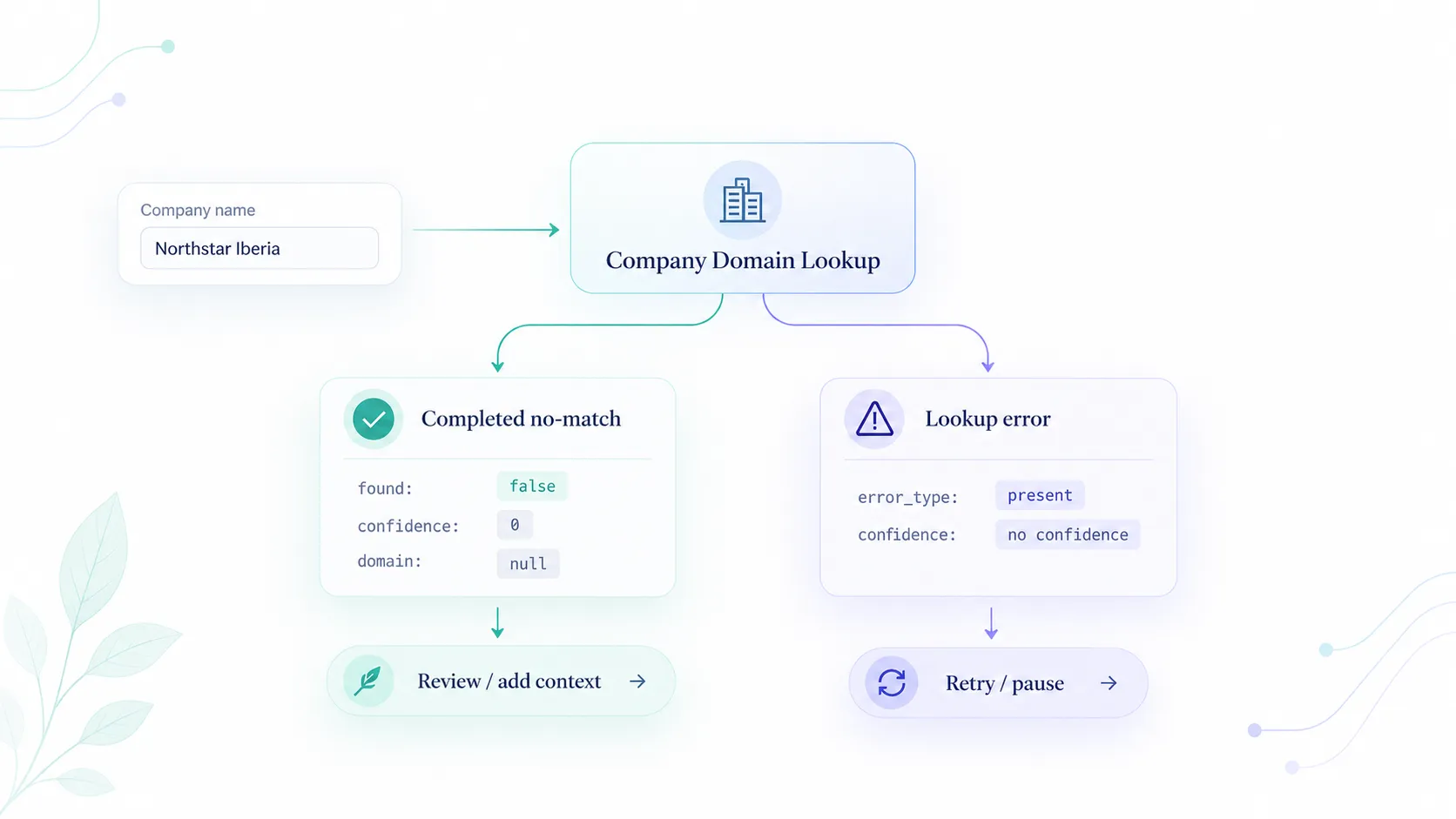
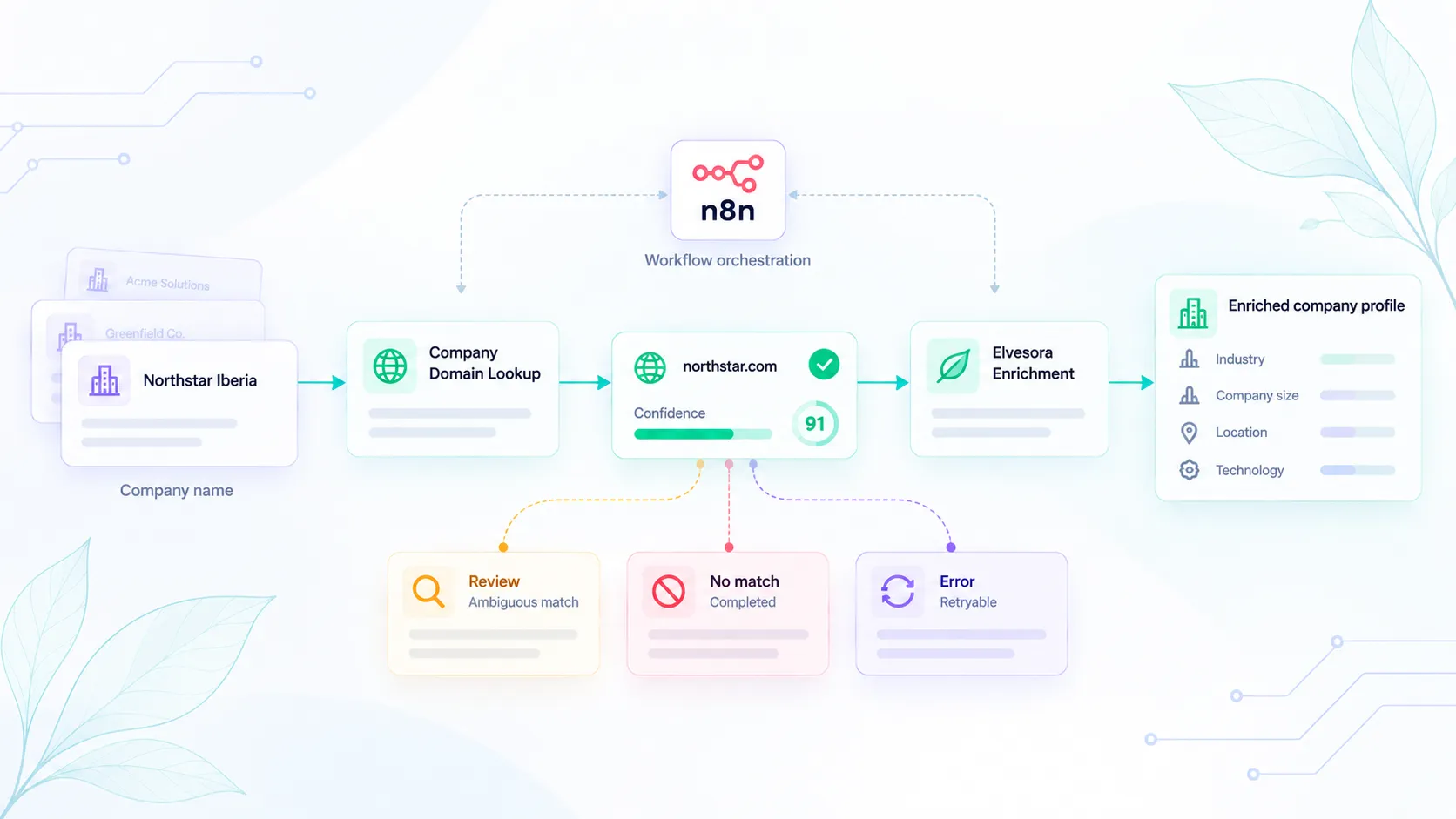
Company Domain Name in HubSpot: What It Means and How to Fill It
Understand Company domain name and Website URL in HubSpot, then fill missing domains with reviewed lookups and imports keyed by Record ID.

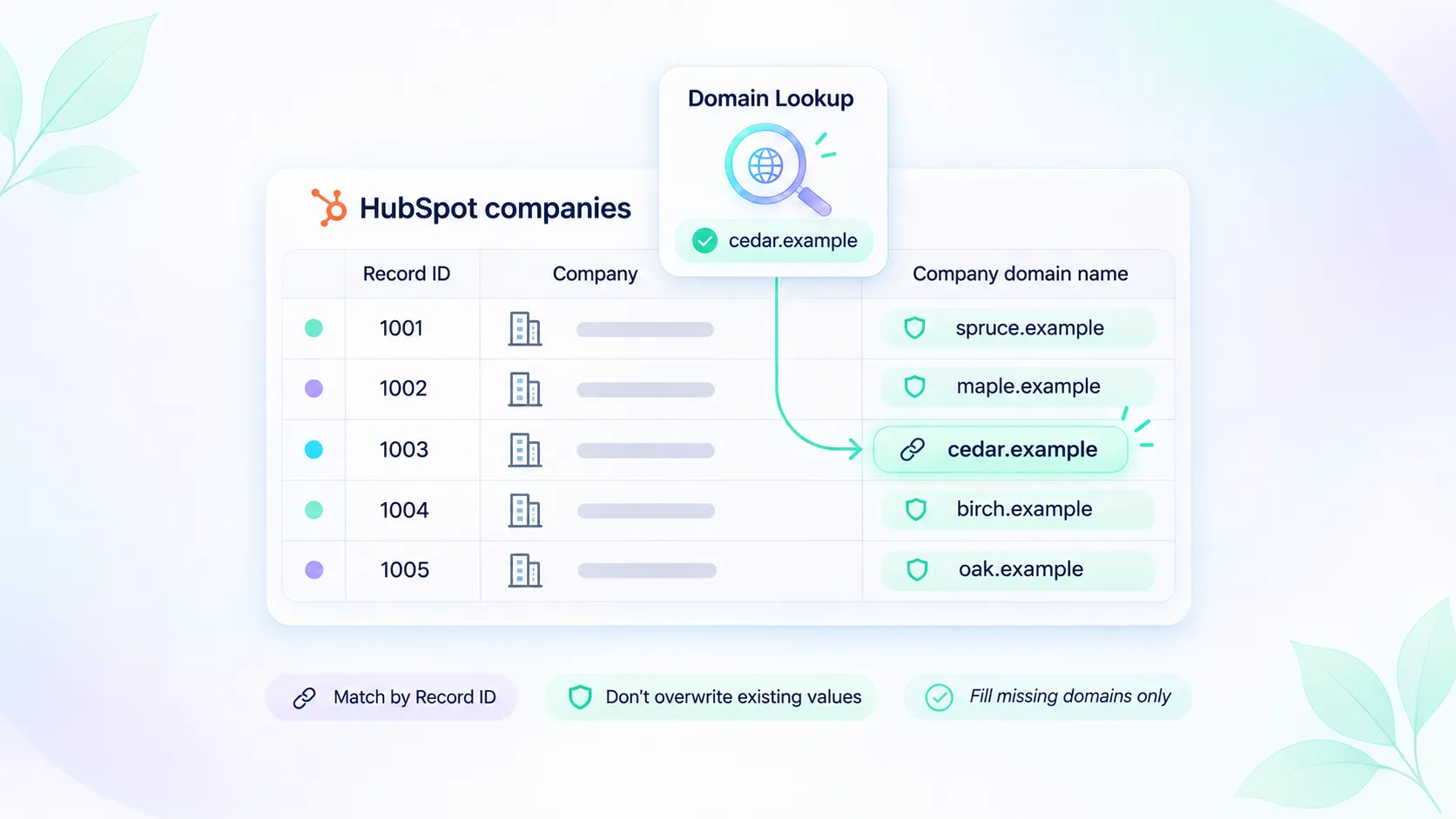
Company domain name in HubSpot is the company's website domain, such as willowharbor.example. Website URL holds its web address. HubSpot uses the primary company domain to identify company records and, when automatic association is enabled, associate contacts with companies. The example domain here is fictional; see HubSpot's company domain property guide for the property's behavior.
This guide covers the property on a CRM company record. If you want to host your own website on HubSpot, follow HubSpot's instructions for connecting a website domain.
If Company domain name is blank, check Website URL first. When it already contains the right company's website, use that information. Reserve a name-to-domain lookup for records whose website is still unknown.
For a batch of existing companies, the workflow is: export the records, separate the companies that need lookup, review the results, and import accepted domains against the original Record ID. Keep the final update limited to fields that are still blank.
This is a file-based workflow using Elvesora Company Domain Lookup and HubSpot's import tool. The spreadsheet mapping described below is work you perform between the two products.
HubSpot has its own data enrichment capabilities. But when you're working with company-name-only records and still need a reliable domain candidate, you may need a separate name-to-domain resolution step. Elvesora Company Domain Lookup provides candidates with confidence scores and match reasons, which you can review before updating the original HubSpot records.
Company domain name vs Website URL
HubSpot's default company properties reference says that filling Website URL also fills Company domain name. Check the values actually saved on the record before deciding whether anything is missing. Record ID identifies the existing company record and can be used to update it through an import.
Use those fields to divide the work:
| What the existing company record contains | What to do next |
|---|---|
| A usable Company domain name | Leave it out of this missing-domain batch. |
| A blank domain and a reliable Website URL | Recover the domain from that URL and check the result. |
| Neither a usable domain nor a reliable website | Add the company to the lookup file. |
| A website that appears to belong to another organization | Hold the record for review before filling anything. |
HubSpot's domain property expects the company's root domain, without a scheme, www., page path, or trailing slash. For example, the fictional URL https://www.willowharbor.example/about would supply willowharbor.example. Keep the complete URL in your working sheet. If a regional or hosted subdomain is significant to the company's identity, review the appropriate company domain before filling the field; do not guess it by taking the last two dot-separated parts.
A directory profile, social page, tracking link, or reseller's product page needs a different decision. Its hostname may identify the directory or reseller rather than the company in your CRM. Keep the original URL available while you review it.
If you need to add another domain to an existing company or change which domain is primary, follow HubSpot's domain-management instructions. Keep those records outside this missing-domain batch.
Export the records you intend to update
Create a view of the companies with missing domain values and export it. Include Record ID, company name, country or region, Company domain name, and Website URL. Add a known industry if it helps distinguish similarly named businesses.
HubSpot's record export guide describes exporting a view's current property values and the required Export permission. Make sure the fields you need are actually included in the downloaded file.
Keep an untouched copy of that export. In a working copy, add a decision column such as use existing URL, lookup, or review. This lets you account for every original CRM record without sending all of them through a new lookup.
Do not use the company name as the key for the return trip. A company name can occur on more than one CRM record, while two similar names can belong to different businesses.
Give each lookup its own ID, then retain the CRM mapping
Prepare one lookup row for each company identity you have chosen to resolve. Give it a working identifier such as L-01, and map that value to Elvesora's optional external_id import field.
Separately, retain a table linking every source Record ID to its working lookup ID. The following is an illustrative example, not a real CRM export or lookup result:
| HubSpot Record ID | Company name | Country | Lookup ID |
|---|---|---|---|
| 7001 | Willow Harbor Instruments | United Kingdom | L-01 |
| 7002 | Willow Harbor Instruments | United Kingdom | L-01 |
| 7003 | Willow Harbor Instruments | Canada | L-02 |
In this example, a reviewer has established that 7001 and 7002 refer to the same business. They still remain separate CRM records. The Canadian company is being investigated separately. Sharing a lookup result is not a decision to merge CRM records.
This mapping matters because the bulk importer removes duplicate lookup rows before saving the list. Its duplicate key uses normalized company name, country, industry, and sector. Normalization lowercases values, collapses whitespace, and removes punctuation. Neither external_id nor additional_context is part of the duplicate key.
When two rows have the same duplicate key, the first row is kept. The later duplicate is dropped along with its external_id, so only the first row's external_id appears in the export. Assigning a different HubSpot Record ID to each lookup row does not prevent this deduplication.
If two genuinely different businesses have identical values for those four fields, keep them out of the same bulk lookup group and resolve them individually with their distinguishing context. Do not manufacture a different industry or country simply to prevent deduplication.
Resolve the remaining names and review the destination
In Elvesora, create a Company Domain Lookup list and upload the prepared CSV or Excel file. Map company_name, your lookup ID as external_id, and any useful country, industry, sector, or additional context. Check the preflight duplicate count against the company groups you prepared. The Domain Lookup documentation covers the supported import and review workflow.
Review the proposed website against the CRM record's actual business. If the account represents a regional subsidiary, a parent group's homepage may be useful background without being the website you want stored on that record. If the candidate contradicts a reliable existing URL, investigate the disagreement instead of treating the new result as a replacement.
Resolve corrections in the list before preparing the HubSpot file. The export distinguishes Suggested Domain, Corrected Domain, and Final Domain, along with External Id, verification status, and review notes. Use Final Domain from records you have accepted. A nonempty Final Domain by itself is not a substitute for checking the review decision.
You can export verified records for the update preparation, while keeping unresolved companies in the working sheet. Do not fill a missing result with a domain guessed from the company name.
Build a two-column update file
Join the accepted lookup export back to your mapping table using the working lookup ID. Then produce a file containing only the existing HubSpot Record ID and its accepted Company domain name.
In the fictional example, an accepted result for L-01 could produce:
| Record ID | Company domain name |
|---|---|
| 7001 | willowharbor.example |
| 7002 | willowharbor.example |
Keep 7003 out of the update file until its own result is accepted. There is no requirement to fill every blank field in one pass.
Before assigning the same domain to multiple HubSpot company records, review the downstream association behavior. When automatic contact-company association is enabled, HubSpot may associate contacts with only one of the companies sharing that domain. Using Record ID preserves the intended update target, but it does not resolve duplicate-company or contact-association decisions.
Before importing, refresh the current values for the selected CRM records and remove any whose domain has since been filled. Also remove rows with a missing Record ID, conflicting accepted domains, or an unresolved review. Keep one intended domain value per Record ID.
Import against Record ID and protect existing values
In HubSpot's import flow:
- Select Companies and Update existing records only.
- Upload the two-column file.
- Map Record ID to HubSpot's Record ID property.
- Map Company domain name to the corresponding company property.
- Enable Don't overwrite for the domain property, then review the mapping before finishing.
HubSpot documents that Record ID takes precedence over other identifiers, the update-only mode ignores new records, and Don't overwrite protects existing values for the mapped property. Import and object Edit permissions are required. Check the current single-object import instructions if the controls differ in your account.
The fresh-value check and Don't overwrite setting help protect existing CRM values, including domains added after the original export.
HubSpot's Don't overwrite option also skips properties that previously held a value, even if they are currently blank. If a domain was deliberately cleared, keep that record in a separate review group rather than assuming this import will refill it.
Check the result against the intended record IDs
After the import completes, inspect the import result and compare the affected records with your two-column file. Check that the intended blank fields received their accepted domains and that existing values stayed intact. Keep rejected or skipped rows in the review sheet with the reason they need attention.
The finished output is a set of completed company properties with a traceable path back to the source records. Deciding whether any of those records should be merged is a separate job; our guide to domain matching for CRM cleanup and merges covers that decision.