Firmographic Segmentation Examples: Build B2B Account Segments from Company Data
See four firmographic segmentation examples, then build a B2B account segment column with clear rules, a spreadsheet formula and an explicit Unknown group.

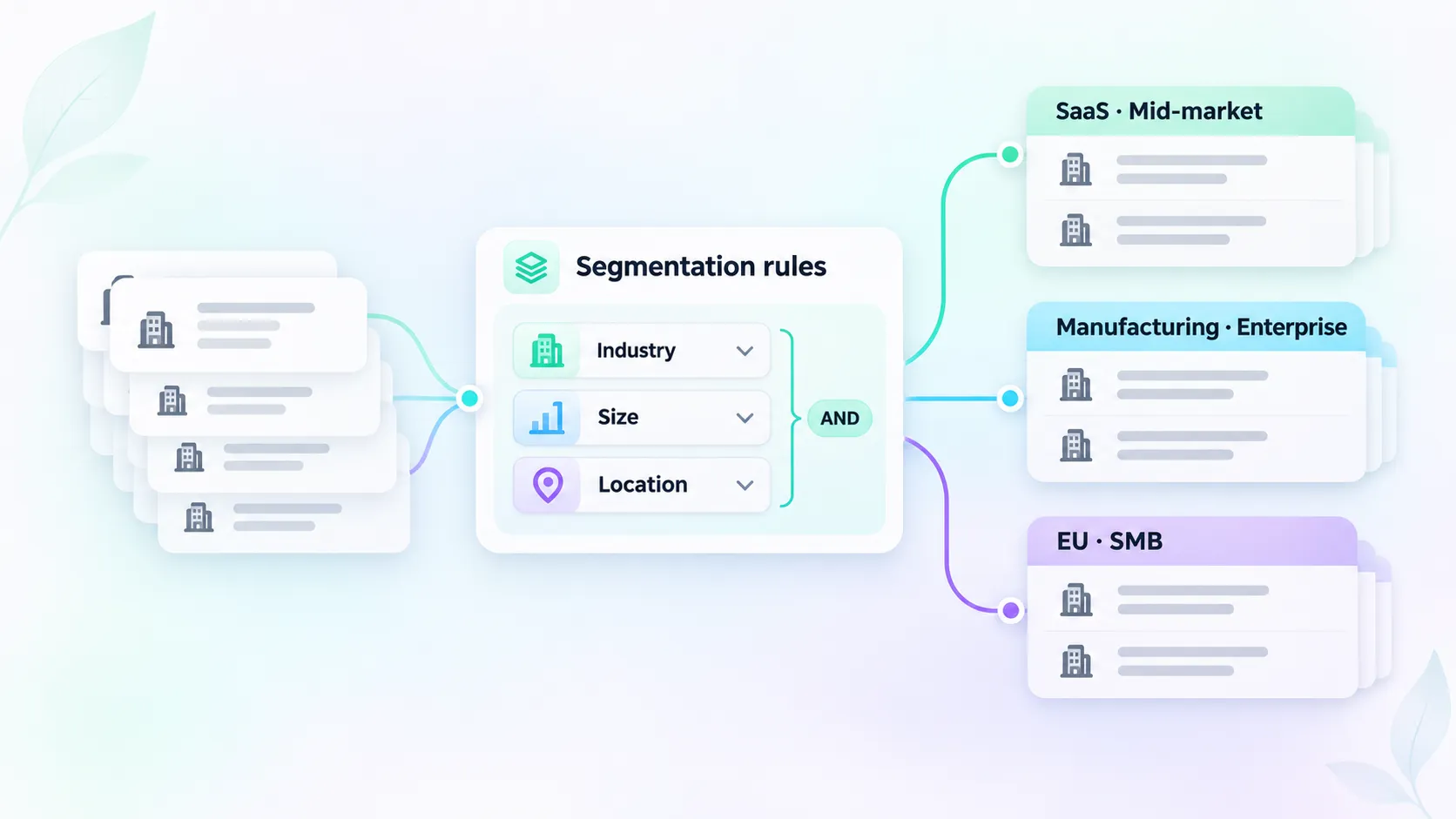
Firmographic segmentation groups companies by characteristics such as industry, employee count and headquarters location. To use those groups in a CRM, you need rules that produce a predictable result for each account, including accounts with missing data.
The examples below show four ways to use those characteristics, then build one complete account-segmentation workflow. You will enrich an existing list of accepted company domains, export the fields, and assign each row to a segment in a spreadsheet. The result is a segment column you can review before using it in your CRM.
The general guide to firmographic company fields explains the wider concepts. Here, the task is to turn three fields into explicit decisions.
Four firmographic segmentation examples
A useful segment connects a company rule to a decision. These examples are illustrative choices you can adapt; they do not describe measured customer results.
| Example | Rule you could apply | What the group lets you do |
|---|---|---|
| Industry-specific research | Industry group is manufacturing | Prepare a research queue for a manufacturing use case, then check whether that use case applies to each account. |
| Regional account planning | Headquarters country is Australia or New Zealand | Organize a regional account queue. Verify operating locations separately if a site visit or local service depends on them. |
| Company-size bands | Employee Count is 1-49, 50-499 or 500+ | Give an account a consistent internal size label for your chosen routing or reporting process. Size alone does not establish budget or buying intent. |
| Combined target-account group | Industry group is software, Employee Count is 50-499, and headquarters is in the United States, Canada or the United Kingdom | Build a focus list for account planning. The walkthrough below also classifies the other accounts and incomplete records. |
These are separate segmentation strategies, so an account may fit more than one example. If you need a single Segment column, decide which rule wins when conditions overlap. If the next action would be identical for two groups, consider keeping them together instead of maintaining another label.
Industry, size and location are company attributes. A person's job title or a recent website visit requires different data. Keep those additional conditions separate so the firmographic segment does not become an unsupported claim that an account is ready to buy.
Choose the decision your segments will support
Suppose your team wants to organize a list of software accounts for account planning. For this example, its chosen focus is software companies with 50–499 employees whose headquarters are in the United States, Canada or the United Kingdom. Larger software companies belong in a separate group. Other software companies and other industries remain visible.
Those thresholds and countries are illustrative business choices. They are not universal definitions of a small, medium or large company, and they do not show which accounts will buy.
We will create five mutually exclusive outputs:
| Segment | Meaning in this example |
|---|---|
| Software: 50-499, focus markets | Software account, 50–499 employees, headquarters in one of the three chosen countries |
| Software: 500+ | Software account with at least 500 employees, in any recognized country |
| Other software | A complete software record that meets neither rule above |
| Other industries | A complete record mapped to an industry outside software |
| Unknown | The result or a required field cannot support these rules |
“Other” means the available data places an account outside the selected group. “Unknown” means there is not enough usable information to make that decision. Keep the distinction when you report or export the segments.
1. Start with accepted company domains
Keep a master sheet with your CRM account ID and the business domain you have accepted for that account. Resolve identity questions before attaching industry and size data: a correct classification for the wrong company is still the wrong segment.
If several CRM accounts share a domain, preserve their separate IDs and decide how that relationship should work in your CRM. Do not merge them merely to make the enrichment import simpler.
For this workflow, submit domains rather than a mix of domains and email addresses. A domain column gives you a consistent value for joining the results back to your master sheet. If you only have company names, use a domain-resolution workflow first, then review the proposed identity before enrichment.
2. Enrich the list and export the relevant fields
In Elvesora Enrichment, open Lists and create a list from your accepted domains. You can paste values or upload CSV, XLS or XLSX; the documented upload limit is 10 MB. The basic enrichment walkthrough covers the initial single-company and list workflows.
Review the results, then download the XLSX export. For this example, you need these exported columns:
| Export column | How the worksheet uses it |
|---|---|
| Domain/Email | Join the result to the accepted domain in your master sheet |
| Industry | Map the returned label to an industry group |
| Employee Count | Apply the chosen numeric thresholds |
| HQ Country | Map the returned location to a market group |
| Result Type | Determine whether this run returned an enriched company |
| Processed At | Record when the list row was processed |
Keep the CRM IDs in your master sheet. The enrichment export has a defined set of columns; do not expect arbitrary columns from the original upload to be carried through.
The Enrichment API and bulk-workflow documentation describes the available fields and result types. A successful company result does not guarantee that every field you need is present. Processed At is the operation time, not proof that an employee count or headquarters location was verified on that date.
3. Make the input categories explicit
Create a working sheet with these columns:
| Column | Working value |
|---|---|
| A | CRM account ID from your master sheet |
| B | Accepted company domain |
| C | Result Type from this enrichment run |
| D | Industry group you derive from Industry |
| E | Employee Count, kept as a number when available |
| F | Market group you derive from HQ Country |
| G | Segment calculated by the rules below |
For Industry group, use only software, other or unknown. Review the industry labels actually returned in your file and create a small mapping table. For example, your table might map Software Development to software and Manufacturing to other. An unfamiliar label stays unknown until you decide where it belongs.
These example labels do not claim that every provider uses the same industry vocabulary. Keep the original Industry value alongside the working sheet so a mapping can be reviewed later.
For Market group, use:
- focus for a recognized headquarters country in the United States, Canada or the United Kingdom;
- other for a recognized country outside those three;
- unknown for a blank or unresolved country value.
Map country names and codes deliberately. Do not let an unexpected label become other just because it is non-empty. Headquarters is also the specific geography used here; it does not establish where a company sells, hires or has every office.
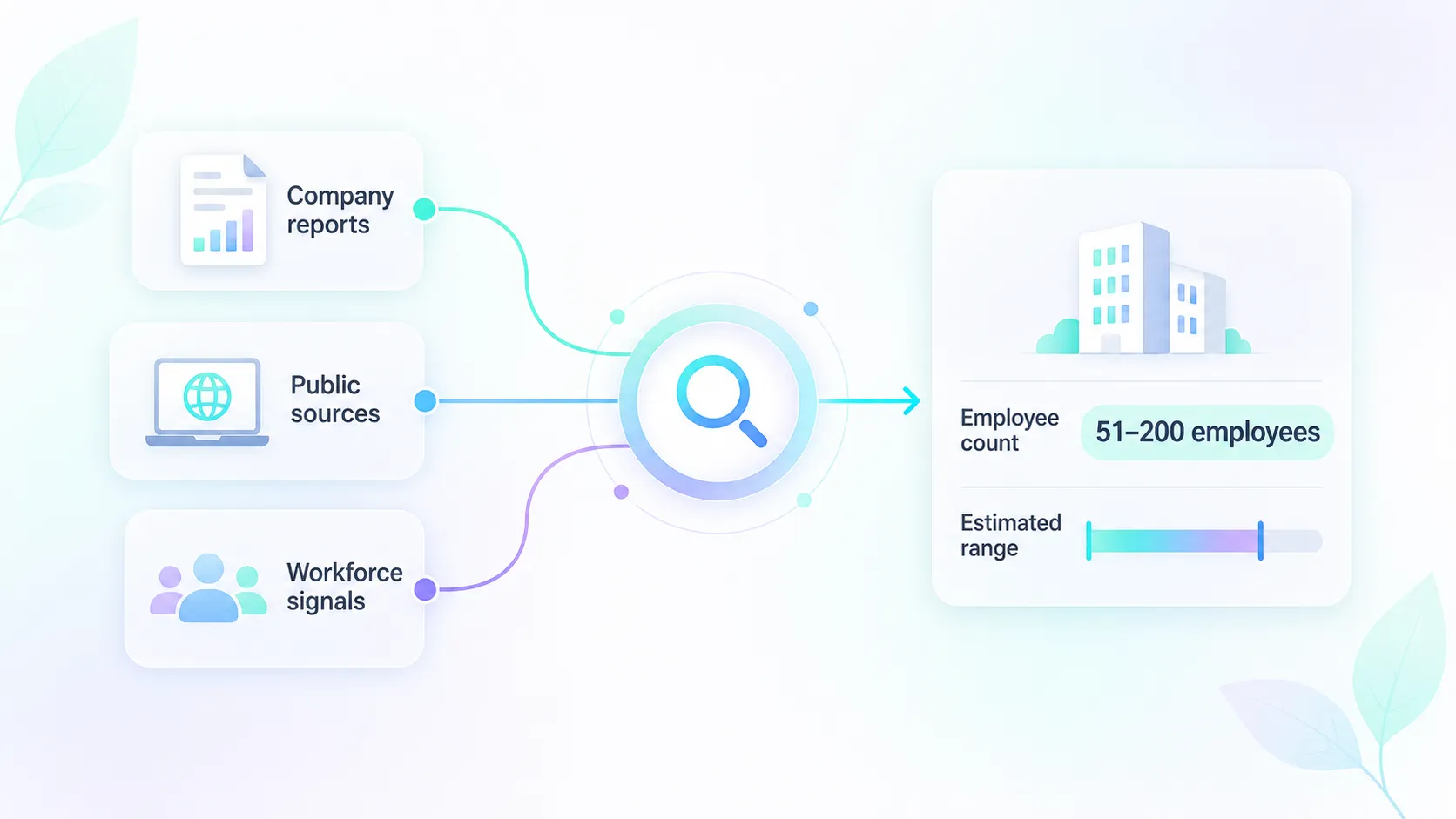
For Employee Count, retain a numeric value only when you have one. For guidance on finding a company headcount and distinguishing numeric counts from ranges, see How to Find a Company’s Employee Count. Do not turn a blank into zero or convert a range such as 51–200 into a made-up exact count. This example requires a positive whole number; zero, negative numbers, fractional values and non-numeric inputs go to Unknown.
4. Apply the rules in order
The order makes the categories exhaustive and prevents the same account from receiving two segments.
- If Result Type is not ENRICHED, or a required working value is missing or invalid, assign Unknown.
- Otherwise, if Industry group is other, assign Other industries.
- Otherwise, if Employee Count is 500 or more, assign Software: 500+.
- Otherwise, if Employee Count is at least 50 and Market group is focus, assign Software: 50-499, focus markets.
- Assign every remaining complete software record to Other software.
In this example, all three fields are required even when a particular branch could be decided with fewer fields. That is a deliberate choice to keep the definition of a complete record consistent. Your own process can make a different choice, but write it down before applying the rules.
Worked example, including the boundaries
All companies and values below are fictional. The .example domains are reserved for examples; these rows are not returned Elvesora data.
The Industry group and Market group columns are worksheet mappings, not additional fields generated by the enrichment product.
| Domain | Result Type | Industry group | Employee Count | Market group | Expected segment |
|---|---|---|---|---|---|
| acorn.example | ENRICHED | software | 49 | focus | Other software |
| beacon.example | ENRICHED | software | 50 | focus | Software: 50-499, focus markets |
| cedar.example | ENRICHED | software | 499 | focus | Software: 50-499, focus markets |
| delta.example | ENRICHED | software | 500 | other | Software: 500+ |
| elm.example | ENRICHED | software | 120 | other | Other software |
| forge.example | ENRICHED | other | 80 | focus | Other industries |
| grove.example | ENRICHED | software | blank | focus | Unknown |
| harbor.example | ENRICHED | unknown | 75 | focus | Unknown |
| iris.example | ENRICHED | software | 100 | unknown | Unknown |
| juniper.example | NOT_FOUND | unknown | blank | unknown | Unknown |
The 49/50 and 499/500 rows are useful checks. A 49-person software account is outside the chosen middle band. A 50-person account enters it. A 500-person account enters the larger-company group even when its headquarters are outside the focus markets.
The NOT_FOUND row is not an account outside your target market. This run did not return the company data required to classify it.
5. Calculate the segment in your spreadsheet
With the working columns above, paste this formula into G2 and fill down. It uses comma separators; adapt separators if your spreadsheet locale requires a different convention.
=IF(OR(C2<>"ENRICHED",AND(D2<>"software",D2<>"other"),AND(F2<>"focus",F2<>"other"),NOT(ISNUMBER(E2))),"Unknown",IF(OR(E2<1,E2<>INT(E2)),"Unknown",IF(D2="other","Other industries",IF(E2>=500,"Software: 500+",IF(AND(E2>=50,F2="focus"),"Software: 50-499, focus markets","Other software")))))
The first check rejects incomplete or unrecognized inputs. The next check rejects numeric values outside the positive-whole-number rule. Only then does the formula choose a business segment.
Test the worked rows before filling down your real sheet. Also test a numeric value imported as text: the formula intentionally treats text as Unknown. Convert it to a number only after confirming what the source value means. A value such as “51–200” should remain a range, not become a count during cleanup.
Elvesora supplies the company fields and the export. The formula, category mapping and segment labels in this tutorial are calculations in your spreadsheet.
6. Review the segment column before using it
Filter Unknown first. Its rows may need a corrected identity, a mapped industry label, an available employee count or a later enrichment attempt. The right action depends on the result; repeatedly submitting the same row is not a substitute for resolving the reason it is unknown.
Next, compare a few records around your thresholds with the expected decisions. Make sure the master-sheet join has preserved each CRM account ID and that an unfamiliar country has not silently become other.
Use your CRM's normal import or update workflow to bring in the reviewed segment column. Keep the raw company fields and the rule definition so you can explain a segment without reverse-engineering a label.
When you change the segment criteria, recalculate from the stored fields first. Changing a 500-person threshold to 1,000 does not, by itself, require another enrichment call. A refresh is a separate decision about whether the underlying company data needs updating; check the current credit allowance before requesting new data.