How to Find Out How Many Employees a Company Has
Find out how many employees a company has using websites, reports and LinkedIn. Compare source definitions, then save a useful observation in your CRM.

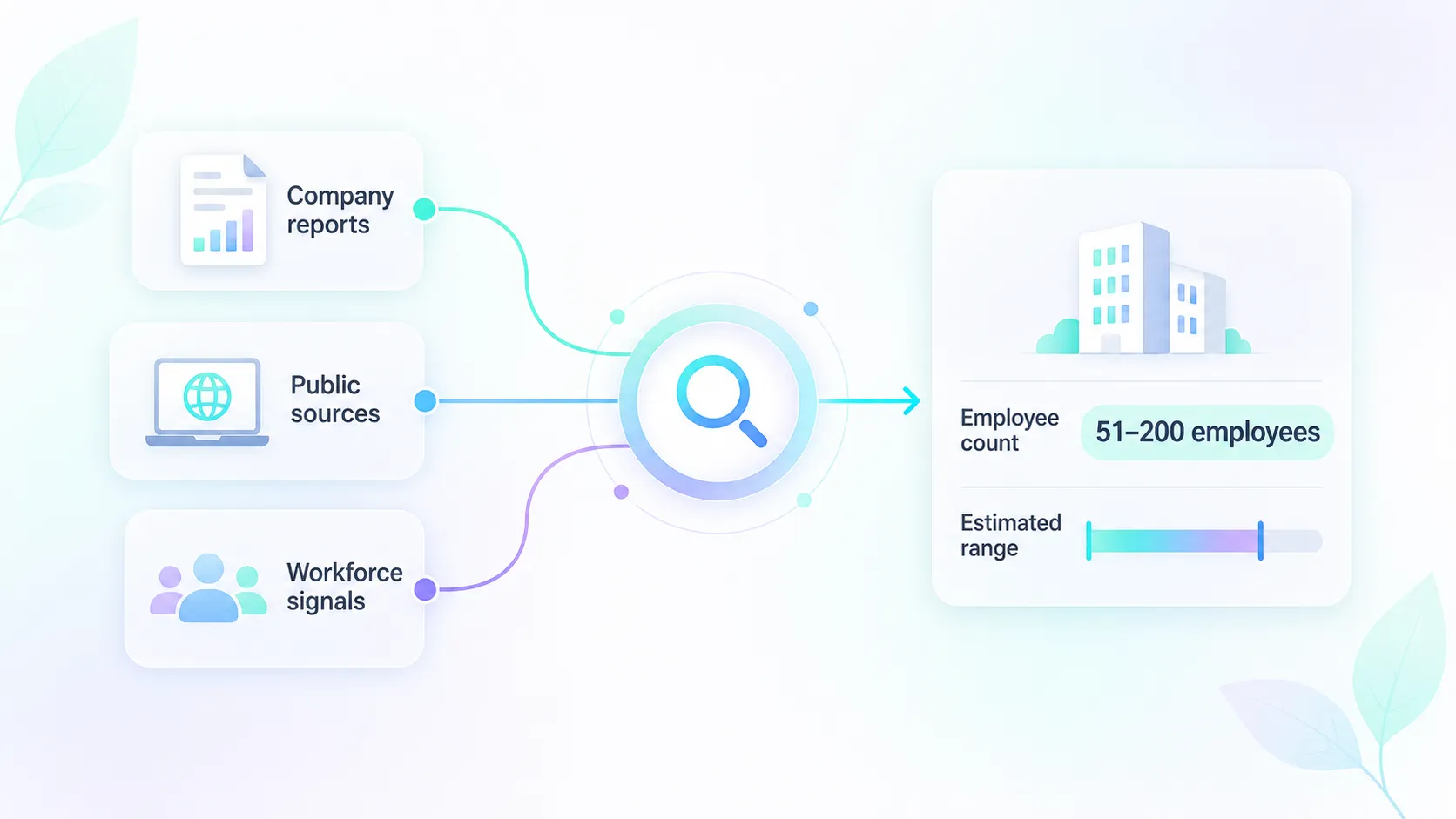
To find out how many employees a company has, start with its own website or latest available annual report. If you cannot find a suitable figure, check the organization's LinkedIn Page or a company-data source. Record what the number measures and when it applies before treating it as the company's workforce.
For one company, a public source may be enough. For a list of known business domains, an enrichment API can supply structured company data, including an employee_count field when available. Neither an exact-looking number nor an automated lookup guarantees a current payroll total.
This guide covers the public-source search first, then shows how to retrieve an available count with Elvesora and store it in your CRM. Keep employee ranges and associated-profile counts distinguishable throughout the process.
Decide which company and which count you need
Write down the account you want to describe before collecting a number. A parent group, a subsidiary and a local office are different possible scopes. If the source does not establish which one its number describes, leave that question open rather than attaching the number to every related account.
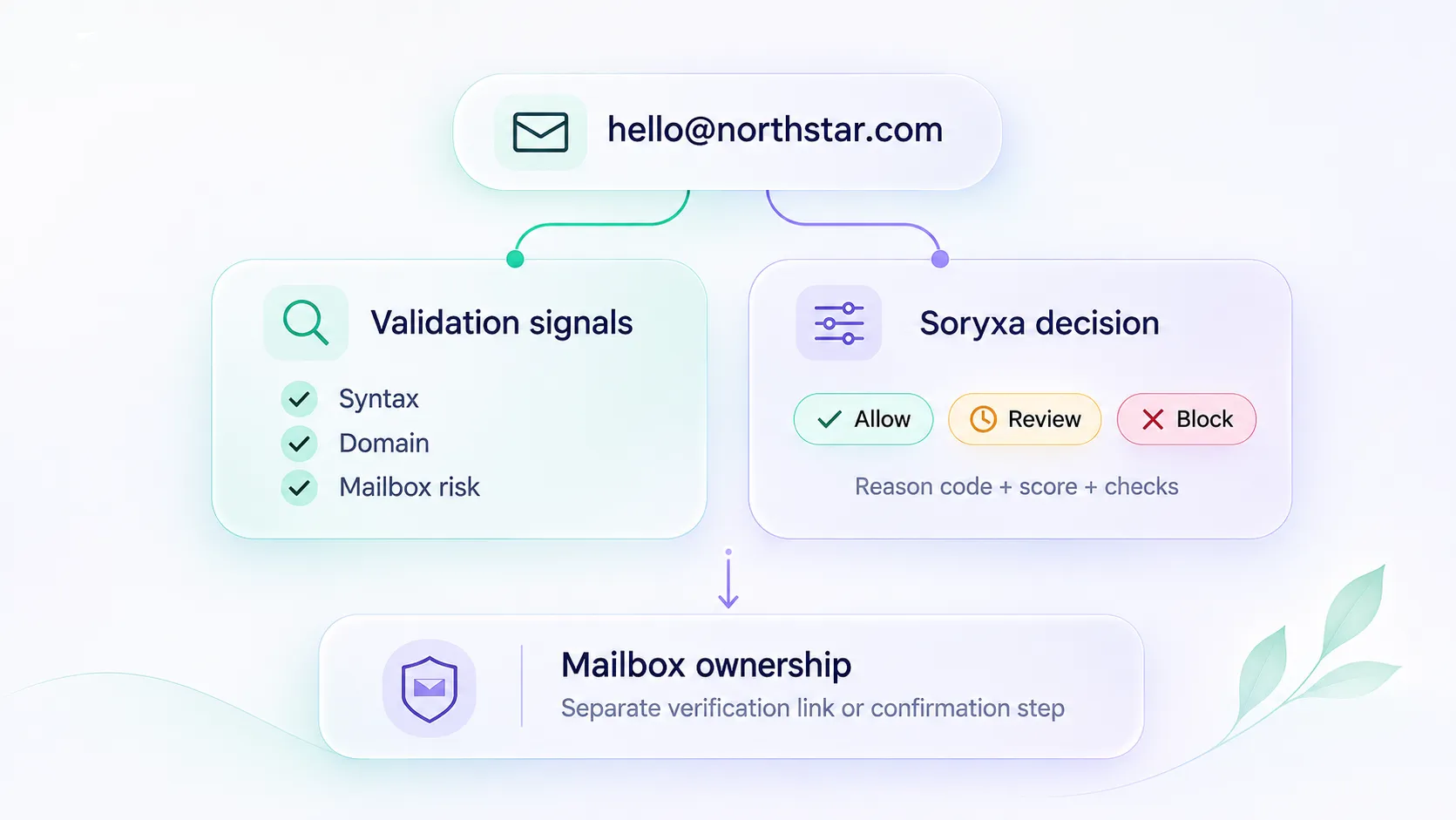
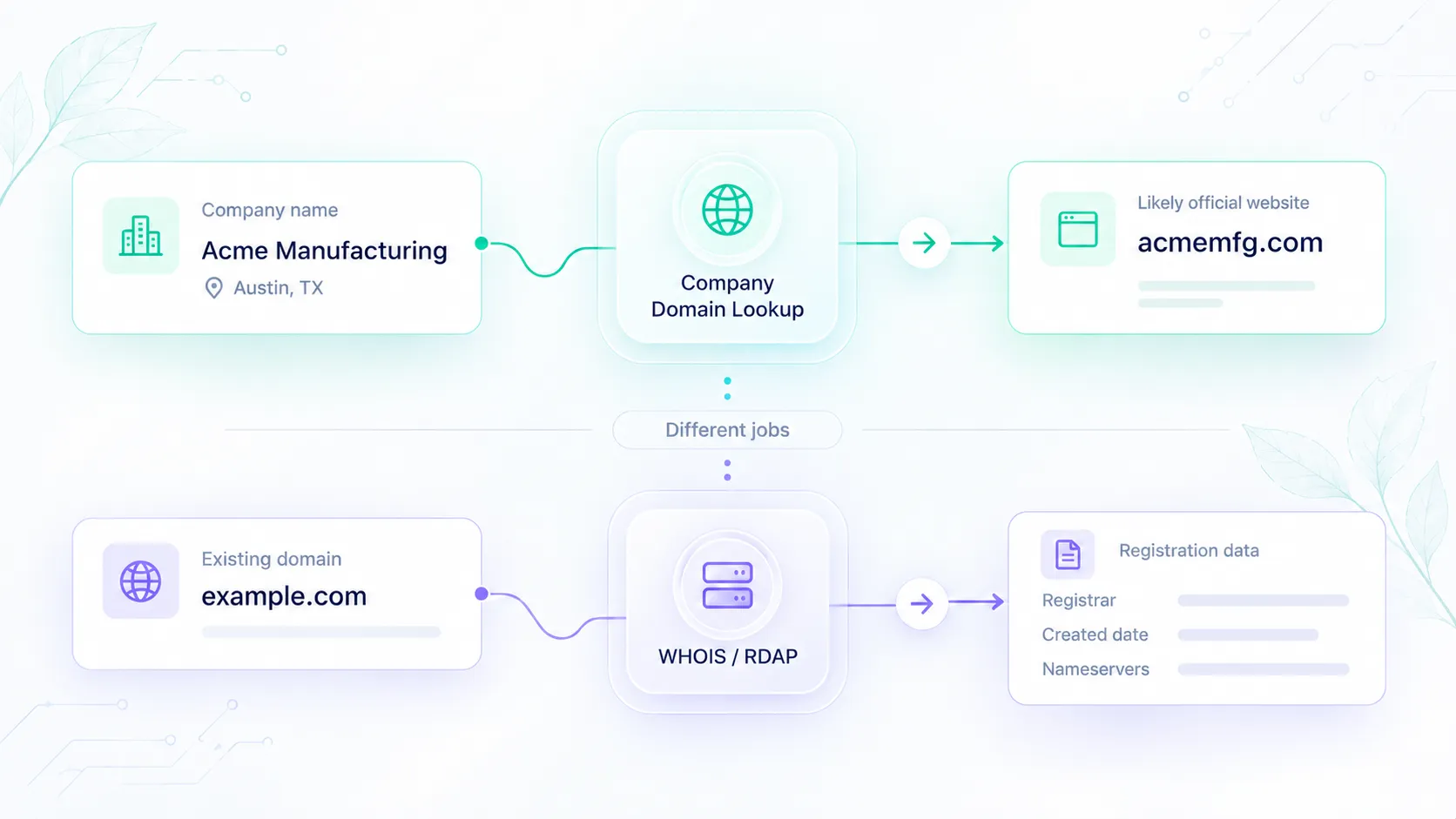
The domain is the starting point for the enrichment lookup. Keep it associated with the correct CRM account ID, and check the returned company name before using the employee field. If the input is only a company name, resolve and review the domain first. See Company Domain Lookup Before Company Data Enrichment for the identity-matching workflow.
Then decide how the number will be used. A broad size filter may work with a range. A threshold rule such as “at least 50 employees” needs enough information to determine which side of the threshold the account belongs on. A range that crosses the threshold cannot settle that question.
For context on the wider field set, see the guide to firmographic company data.
Find an employee count in public sources
Search the company's own website
Start with About, Careers, Newsroom and Investor Relations pages. Use the site's search or a search query such as site:rivergate.example employees, replacing the fictional domain with the company's accepted domain. Open the page itself rather than copying a number from a search snippet.
Look for the count, the company or group it covers, and any date or qualifier beside it. A statement about a global group should not become the count for one local office. A page showing selected team members does not establish the total workforce.
If the page supplies a suitable count and scope, preserve its URL and wording in your research record. You do not need another lookup merely to copy a value you already have.
Check an annual report or filed document
On the company's investor-relations site, open the latest available annual report and search within it for employees, workforce or human capital. Record the reporting date and whether the figure refers to people, full-time employees, an annual average or another defined measure.
Microsoft's 2026 annual report, for example, reported approximately 223,000 full-time employees as of June 30, 2026. The reporting date and employment scope are part of the observation, not optional details.
For companies that file with the SEC, the free EDGAR search accepts a company name, ticker or CIK and offers full-text searches with filters. For UK company documents, Companies House provides free information and document images. These are routes to source documents, not a guarantee that every company publishes an employee count. In other markets, begin with the company's own report or the relevant local filing service.
Read the label on a LinkedIn company page
Open the organization's page and check that its identity and website match the business you are researching. If it shows a company-size range, retain the range. If it shows a count of associated employees or members, retain that label too.
LinkedIn explains that members become associated with a page through their profile experience. An incorrect page selection can create a wrong association, and changes can take time to appear. The associated-member figure therefore answers a different question from a company-reported workforce total.
If public sources do not provide a suitable number, keep it unresolved, ask the company when the count matters to your relationship, or use a company-data lookup with its own limitations. Do not manufacture an exact count from a team gallery, a range or the number of open jobs.
Keep counts, ranges and profile totals separate
These values should not be stored interchangeably:
| Source representation | What to preserve | What not to infer |
|---|---|---|
| Numeric employee count | The number, source, any stated scope and any stated effective date | That a whole number is necessarily exact or current |
| Employee range, such as 51–200 | The lower and upper bounds or the original range label | An exact count of 125 or another invented midpoint |
| Count explicitly based on employee profiles | The observed count and the source's dataset definition | A complete payroll total for the employer |
| Missing employee field | An empty count with an explicit unresolved state in your workflow | Zero employees |
CRM fields can make this distinction concrete. HubSpot's company-property documentation defines Number of employees separately from Employee range. Use the equivalent distinction in your own CRM instead of forcing every source into one numeric field.
Suppose one fictional source reports 80 employees and another reports a 51–200 range. The values are compatible, but that does not validate either source. A third source may report 63 associated profiles; if its definition is a profile count, it is measuring something different.
Before choosing a value, compare the company identity, scope, date and field definition. Do not average the three values. If the disagreement would change an important account decision and you cannot resolve it, keep the account in review.
Look up employee count with Elvesora
Use this route when you need a structured lookup for a known business domain or a consistent export for an account list. Keep any suitable company-reported observation available for comparison.
Elvesora Enrichment starts with a business domain and can return company-level fields including employee_count. The documented contract describes that field as an integer when available. A company can be enriched while this particular field remains absent.
For one account, enter its domain in the signed-in enrichment dashboard and inspect the returned company profile. Check the identity and the employee field together. The basic enrichment walkthrough covers the workspace flow.
For a list of existing accounts, submit the accepted domains through Lists and export the results as XLSX. Keep your CRM account IDs in a separate master sheet and join each returned domain to its reviewed account mapping.
If you are using the API
Send a business domain to POST /api/v1/enrichment/company with your team bearer token. An Idempotency-Key is optional and useful when retrying the same logical request.
This request is illustrative. Replace rivergate.example with the real business domain you have accepted. The .example suffix is reserved for examples, and the fictional company below is not an actual API result.
POST https://enrichment.elvesora.com/api/v1/enrichment/company
Authorization: Bearer <YOUR_TEAM_API_TOKEN>
Content-Type: application/json
Idempotency-Key: employee-count-rivergate-001

{"domain":"rivergate.example"}
An illustrative excerpt of a successful response could look like this:
{
  "success": true,
  "result_type": "ENRICHED",
  "data": {
    "company_name": "Rivergate Works",
    "domain": "rivergate.example",
    "employee_count": 80
  }
}
Read result_type before reading data.employee_count. Then check whether the employee field is present and numeric. Do not assume that ENRICHED means every requested company attribute was found.
Handle the alternatives explicitly:
| Result or field state | Action for this employee-count workflow |
|---|---|
| ENRICHED with a usable employee_count | Consider the returned count for the matched company |
| ENRICHED with no employee_count | Leave the count unresolved; other company fields may still be useful |
| NOT_FOUND | Record that this lookup did not return company data |
| PENDING | Leave the count unresolved and consider a later fresh lookup |
| FREE_EMAIL_PROVIDER or an invalid input result | Correct or review the business-domain input |
| LIMIT_EXCEEDED or a service error | Resolve the limit or service problem before requesting another attempt |
Elvesora documents PENDING as HTTP 400 with success=false and no credit consumed. An earlier response associated with an idempotency key can be replayed during the 24-hour cache window. Reuse the key to retry the same logical request; use a new key when you deliberately request a fresh result later. The API documentation describes the result types and credit metadata.
Store the observation without inventing verification
Choose destination fields that keep the value interpretable. A practical record can contain:
| Your CRM or application field | Suggested content |
|---|---|
| Company domain | The accepted domain associated with the account |
| Employee count | The returned numeric value, or empty when unavailable |
| Employee count source | The source you used, such as Elvesora Enrichment or a named company report |
| Employee count retrieved at | When your workflow retrieved the result |
| Employee size band | A category you derive from the usable count |
| Review note | A conflict, uncertain scope or source-stated date that matters for this account |
These are suggested destination fields. They are not a claim that the enrichment response supplies that metadata or creates CRM properties for you.
In particular, record a source-effective date only when the source actually provides it. Your request timestamp and the list export's Processed At value show when your workflow ran; they do not establish when the employer's workforce was counted. When available, data.sources and data.checked_at provide additional enrichment context. Neither should be treated as proof that employee_count was independently verified on that date.
Do not label an Elvesora count as a verified payroll total or a live headcount feed. The documented company field does not establish those guarantees. If a decision requires that level of certainty, obtain evidence with the required scope and date from the company or an appropriate authoritative source.
Use a deliberate update policy for existing CRM values:
| Current CRM state | Incoming observation | Suggested action |
|---|---|---|
| Count is empty | Usable count for the accepted company | Fill the count and record your source and retrieval time |
| Count is already the same | Same usable count | Keep the value; record the new retrieval separately if your process needs it |
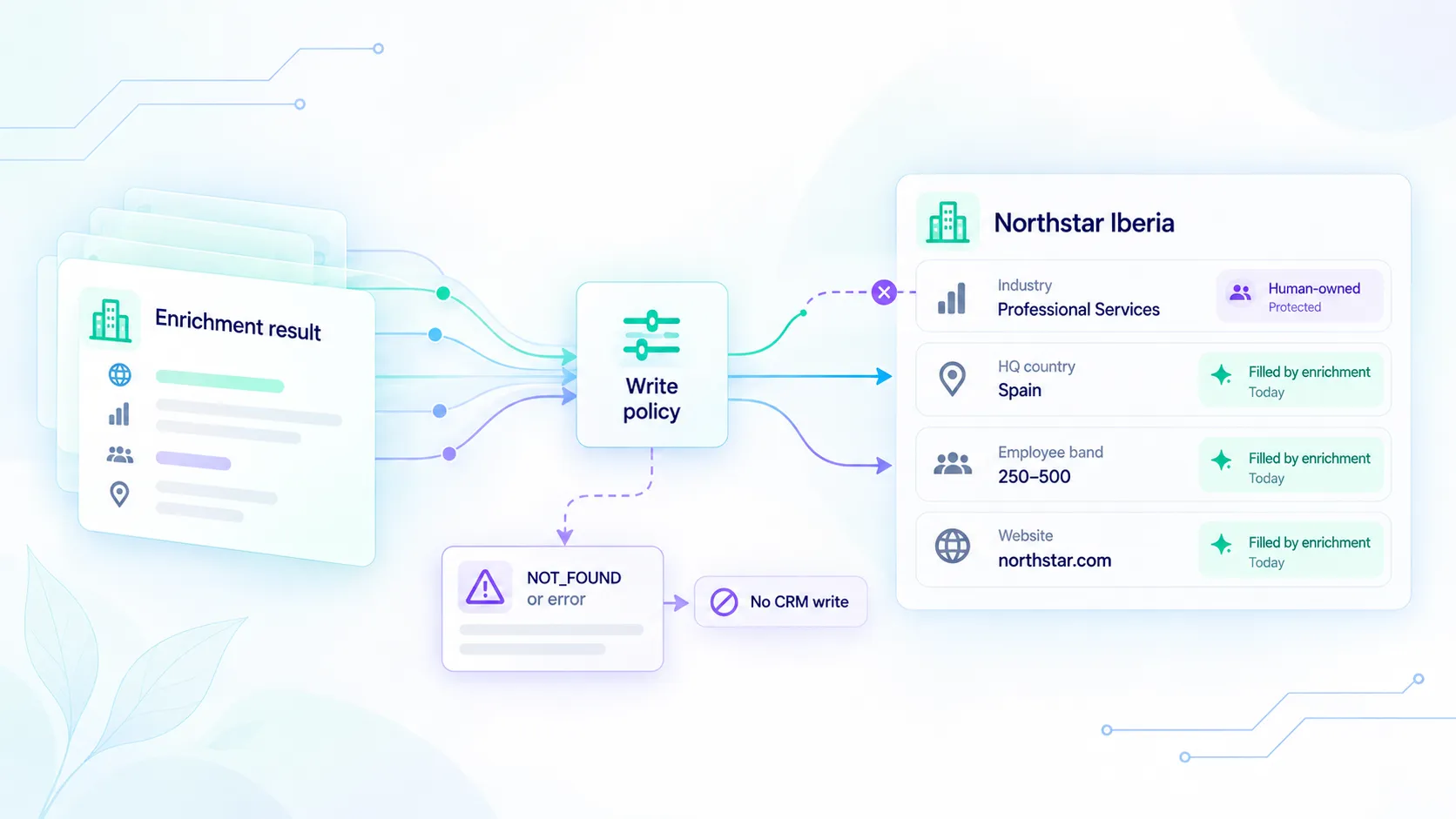
| A manually confirmed count exists | A different count arrives | Preserve the confirmed value while reviewing the discrepancy |
| A count already exists | Incoming employee_count is absent | Keep the existing value; do not overwrite it with zero |
| Company identity is unresolved | Any count | Resolve the account match before applying it |
Apply the reviewed changes through your CRM's existing import or API workflow. Keep the original observation when a conflict needs a decision; replacing it immediately would remove the information needed for comparison.
Derive a size band without changing the count
A band is a business rule applied to a value. It is not a new employee-count observation.
For example, you might choose these internal groups:
| Usable count | Example band |
|---|---|
| 1–49 | 1-49 |
| 50–499 | 50-499 |
| 500 or more | 500+ |
| Missing or not usable for this rule | Unknown |
These are illustrative operating bands, not official legal classifications. Keep the original count separately so you can change the bands without changing the underlying observation.
If B2 contains the numeric count, this spreadsheet formula assigns the example band:
=IF(NOT(ISNUMBER(B2)),"Unknown",IF(OR(B2<1,B2<>INT(B2)),"Unknown",IF(B2<50,"1-49",IF(B2<500,"50-499","500+"))))
The formula requires a positive whole number. Blank cells, text ranges, zero, negative numbers and fractional values return Unknown. It deliberately does not reinterpret a range as a count.
Check the boundaries before applying it to real records:
| Illustrative input | Expected band |
|---|---|
| 49 | 1-49 |
| 50 | 50-499 |
| 499 | 50-499 |
| 500 | 500+ |
| blank | Unknown |
| 51–200 as text | Unknown |
A returned count of 80 would therefore remain 80 in Employee count and produce 50-499 in Employee size band. Changing your bands later requires a new calculation, not necessarily a new lookup.
Refresh when the decision needs newer data
Choose a review or refresh schedule around the decisions that use the field. An account approaching a routing threshold or a record with conflicting source information may deserve attention before a low-priority historical account.
Only ENRICHED results consume an Enrichment credit. Before scheduling refreshes, check the idempotency window and returned credit metadata so repeated requests do not produce unnecessary usage.
An employee count is useful only when you know which company it describes, what the number measures, and when the observation applies.
Keep the original count separate from derived size bands. Preserve source context, review conflicting observations, and avoid treating missing or outdated data as verified workforce information.